Chapter 7
Alarms and Notifications
ObsiFocus sends two kinds of notifications: alarms for tasks you've given a moment, and one morning digest for everything else that's dated.
Alarms
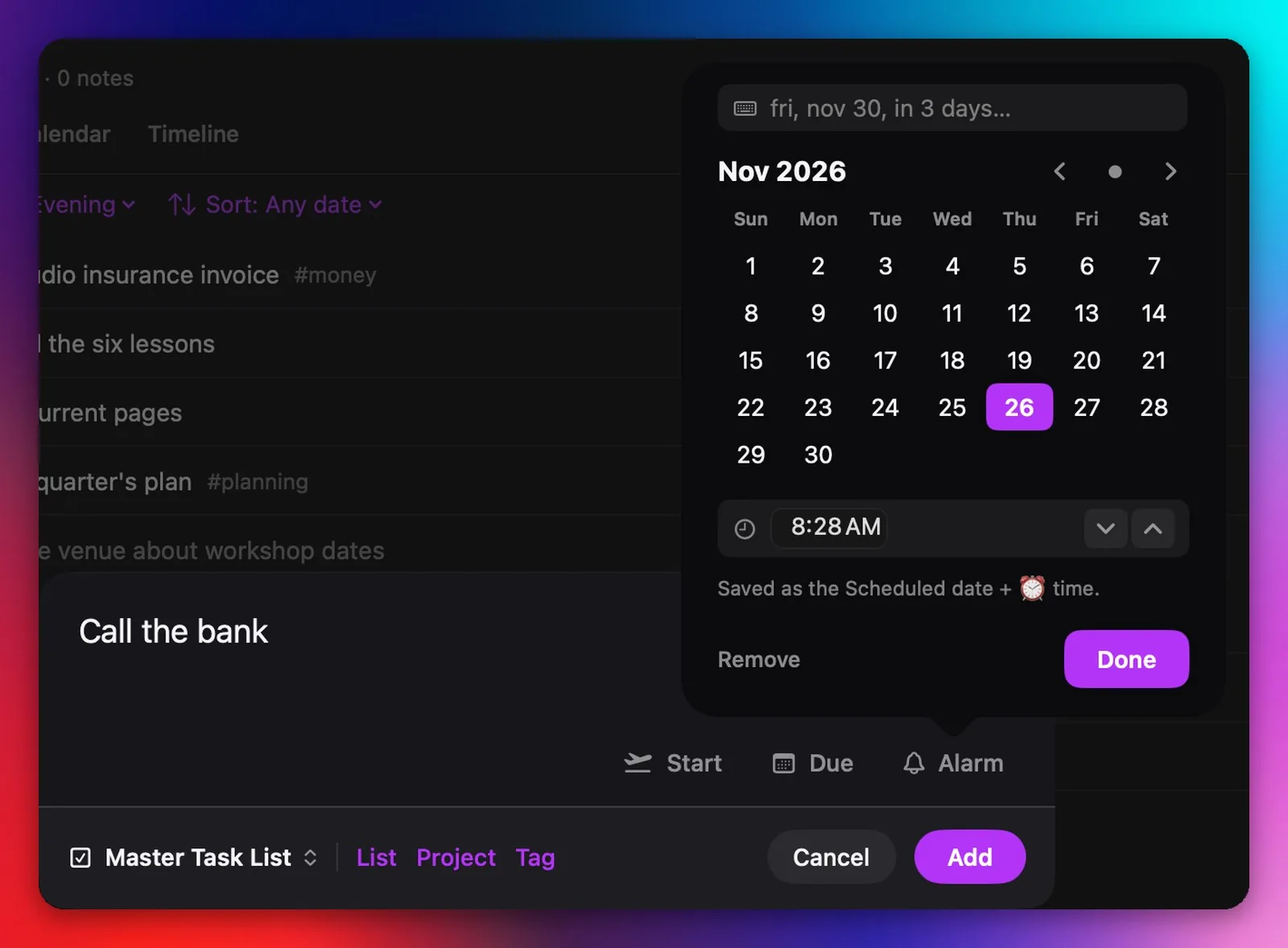
A task with an alarm has a day (its Scheduled date, or its Due date if it has no Scheduled date) and a time (⏰ HH:mm). Both are plain text on the task line, so every device sees the same alarm.
At that moment the task starts to nag: a notification, repeated every few minutes (Settings → Notifications → Alarm nags, default every 5 minutes) until you complete it or snooze it.
Set an alarm from the task editor (Editing Tasks › Alarm), the capture window, Quick Capture, or by typing a time when you capture ("call Sam at 3pm").
Old alarms go quiet
An alarm more than three days in the past stops nagging, the way overdue tasks eventually stop shouting.
Acting on a nag
Long-press the notification (or scroll it on the Watch):
| Action | Does |
|---|---|
| ✓ Complete | Completes the task in your vault, even if the app isn't open |
| Snooze … (three buttons) | Quiet for that long, then nags again. Choose the three lengths in Settings (default 10 minutes, 1 hour, 4 hours) |
| Tomorrow | Moves the alarm to the same time tomorrow — and moves the task's date to tomorrow too |
Tapping the notification itself opens the task.
The morning digest
Dated tasks without an alarm don't each buzz you. Instead, one summary arrives at your digest hour (Settings → Notifications → Morning digest, 4 AM–noon, default 9 AM) on the day they're due or scheduled:
- One task: its title, "Due today" or "Scheduled for today".
- Several: "Today: 3 due, 1 scheduled" with the first few titles.
Tapping the digest opens Forecast.
Location alarms
Off by default. Turn on Settings → Notifications → Location (on each device where you want them). Then the alarm offers At a place.
- Pick a place, When I arrive or When I leave, and a radius (100–1000 m).
- The place is saved in your vault. Your iPhone sets up the alert — Macs don't track location — so a place you add on the Mac starts working once your iPhone opens ObsiFocus.
- The notification reads "You've arrived: …" or "Leaving …". A place alarm alerts once — it doesn't nag like a timed alarm.
- iOS allows a limited number of location alerts at once; ObsiFocus keeps up to 10 active.
The first time you save a place alarm on iPhone, it asks for location permission.
Checking that it works
Settings → Write-back shows notification status: whether notifications are allowed, how many are scheduled, how many tasks have alarms and how many are currently nagging, and the next alert. Send Test Notification fires one in five seconds.