
Chapter 2
Finding Your Way
The sidebar (Mac and iPad)
At the top is the vault switcher — your vault's name. Click it to switch vaults, open the demo vault, or choose another folder.
The top rows
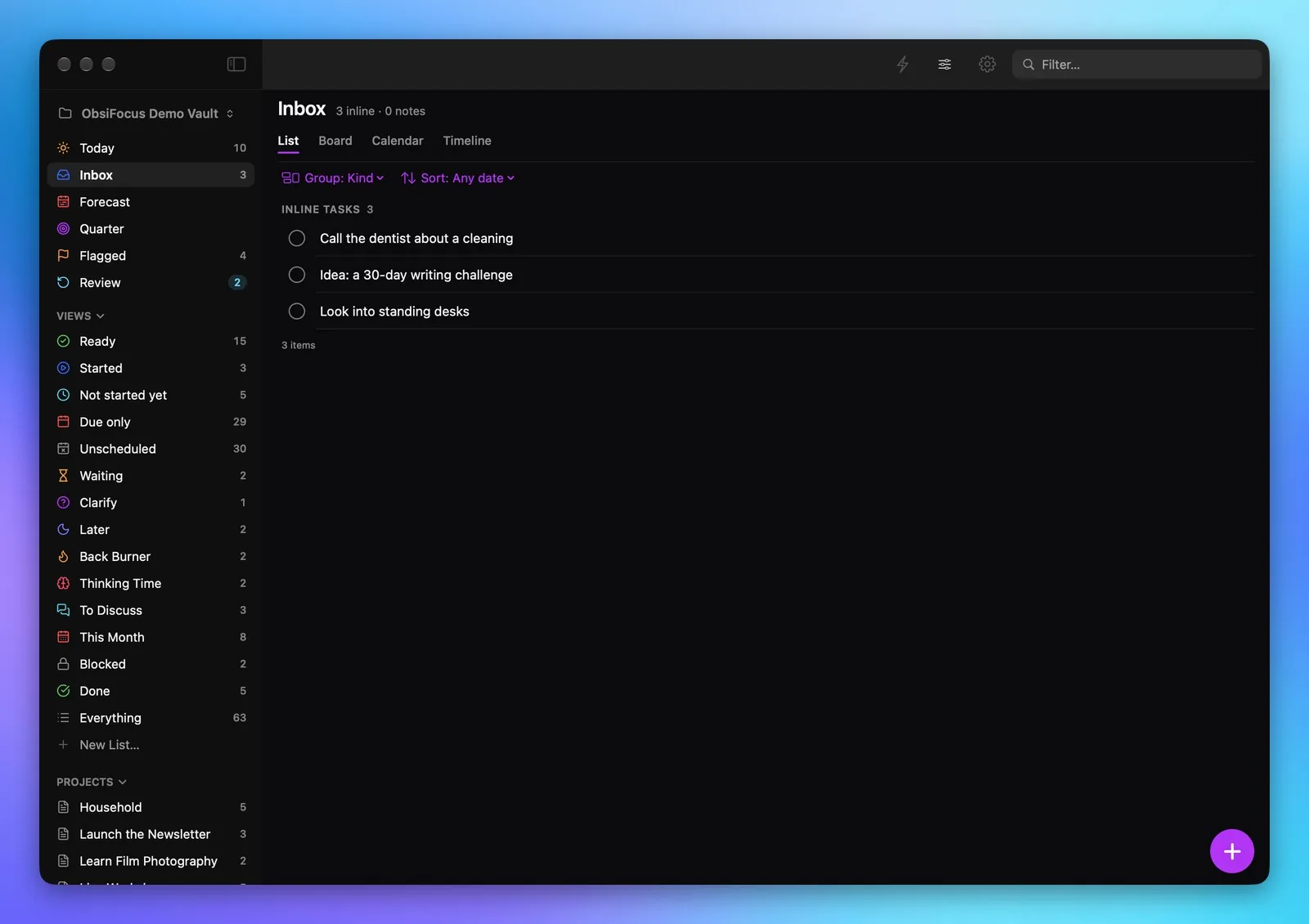
Each has a shortcut, in order: ⌥⌘1 Today, ⌥⌘2 Inbox, ⌥⌘3 Forecast, ⌥⌘4 Quarter, ⌥⌘5 Flagged, ⌥⌘6 Review. On the Mac they're also in the Go menu, and holding ⌘ shows them right on the rows.
| Row | What it shows |
|---|---|
| Today | Everything starting, scheduled or due today or earlier (so overdue work too), with a This Evening shelf at the bottom |
| Inbox | Open tasks and task notes with no tags and no date (start, scheduled or due) — things you haven't processed yet |
| Forecast | The week ahead, day by day — see Forecast |
| Quarter | Your Personal Retreat dashboard — see Quarter |
| Flagged | Open items marked flagged (⏫ high or 🔺 urgent priority) |
| Review | Opens Review; the cyan badge counts projects due for a review — see Projects, Review and People |
Views
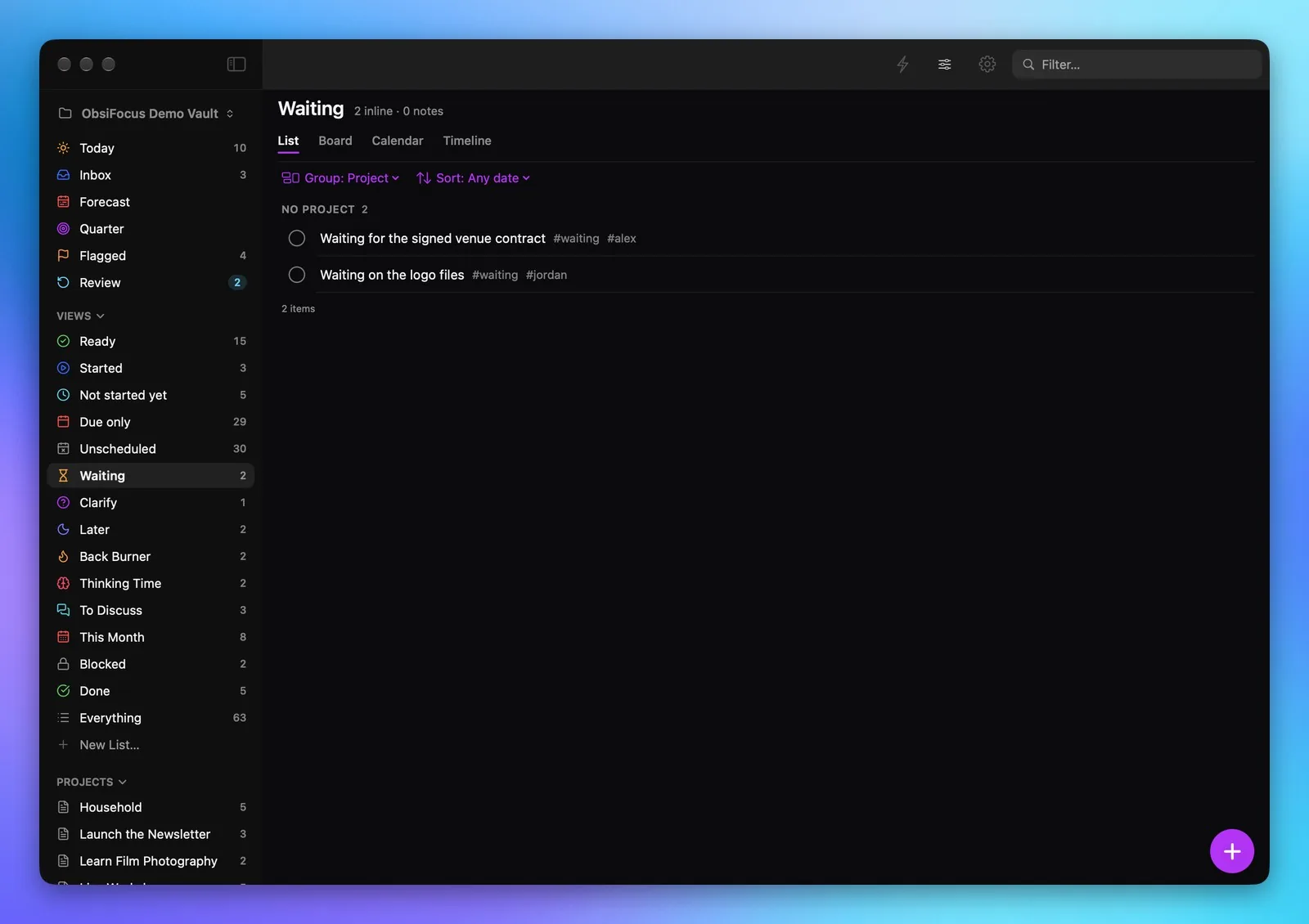
Built-in views, in this order. Right-click one for Edit View…, Copy Code Block or Copy Link — see Code blocks and links.
| View | Shows |
|---|---|
| Ready | Tasks available right now (not on hold, not blocked, not waiting for a start date, next in a sequential project), dated within a week |
| Started | Start date today or earlier |
| Not started yet | Start date in the future |
| Due only | Anything with a due date |
| Unscheduled | No start, scheduled or due date |
| Waiting | Tagged #waiting |
| Clarify | Tagged #clarify |
| Later | Tagged #later |
| Back Burner | Tagged #backburner |
| Thinking Time | Tagged #thinkingtime |
| To Discuss | Tagged #discuss |
| This Month | Due between today and the end of the month |
| Blocked | Waiting on another open task (⛔) |
| Done | Completed items, newest first |
| Everything | Every open item |
Waiting, Clarify, Later, Back Burner, Thinking Time and To Discuss are also the lists you file tasks into from Triage and Capture.
Your own lists
New List… at the bottom of Views opens the list builder:
- Name, icon, color.
- Show — group by (None, Status, Priority, Due, Project, Source, Kind, Path, Day / Evening), sort by (Start or due, Due, Start, Completed), newest first, and whether to include completed and cancelled items.
- Rules — match All, Any or None of the rules below, with nested groups (+ Rule, + Group):
- Has tag · Title contains · Project is · Kind is (inline task or task note) · Status is any of · Priority is any of · Has no tags · Is recurring · Is waiting on another task · Is available now · Is completed or cancelled
- Date — Start or due / Due / Start / Completed, compared to today, in N days, N days ago, the start or end of this month, or a fixed date (or simply is set / is not set)
Has tag and Project is pick from the same filter panel as everywhere else (type to narrow, ⌘1–9, or use a tag that isn't there yet). A live count tells you how many items match as you build. Lists are saved in your vault (in the Unified Tasks plugin's settings), so they travel with it. You can also edit a built-in view this way — your version takes its place, and Reset to Default brings the original back.
Projects
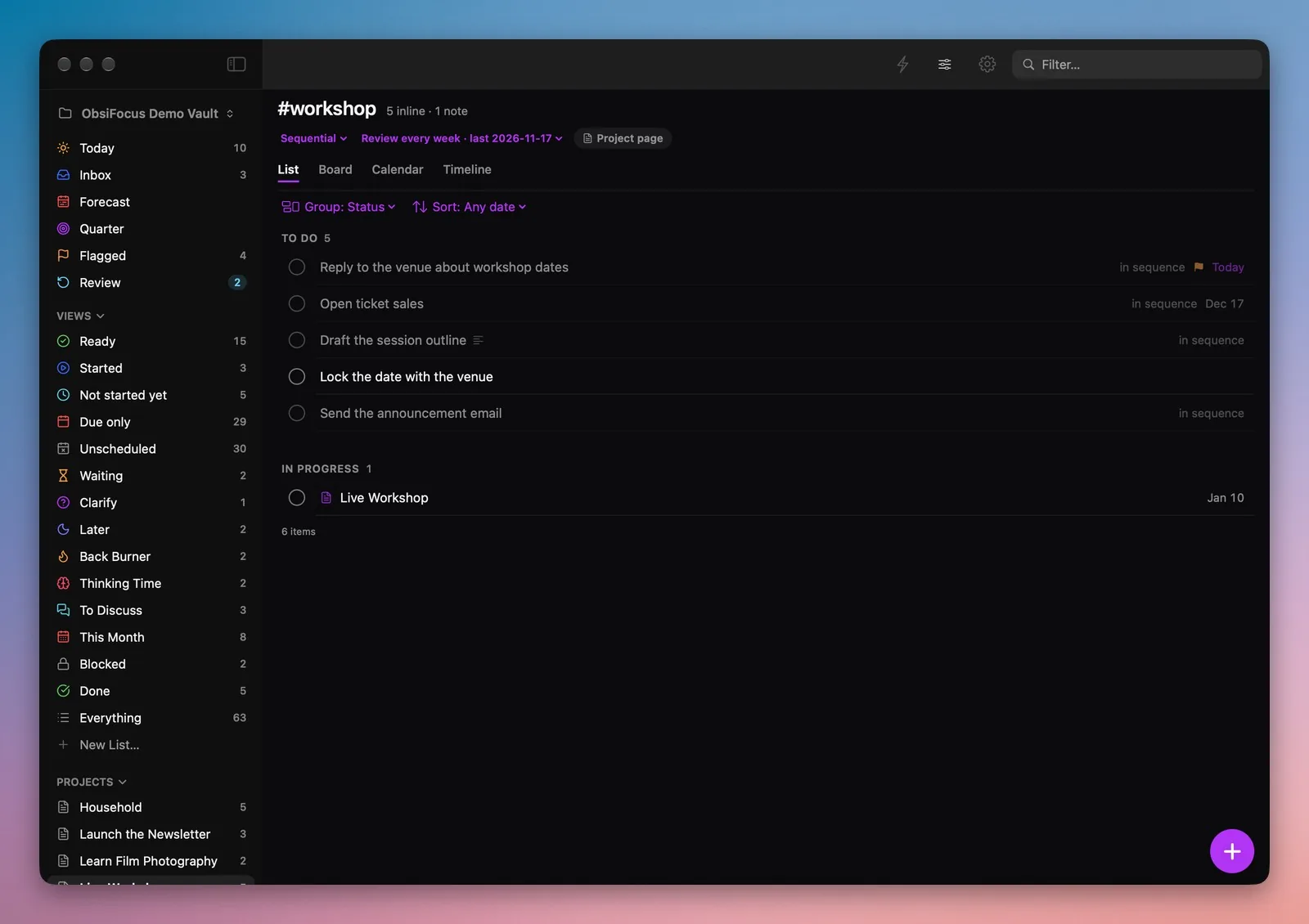
One row per project note, with its count of open tasks. Closed projects sit at the bottom, dimmed. Click one to see every task carrying its tag. Right-click for Focus on … or Copy Link. New Project… creates a project note from your template. More in Projects, Review and People.
People
Appears when your vault has person notes (notes in People/ with a person tag). Click a person to open their page. Right-click to Copy Link or Hide someone; hidden people collapse into an "N hidden" menu where you can show them again.
Click any section header (VIEWS, PROJECTS, PEOPLE) to fold it away; the app remembers.
Code blocks and links
Copy Code Block
Right-click a view or list in the sidebar (or use Copy Code Block in the list builder, or the view title menu on iPhone) and pick a format:
- ObsiFocus block — an
obsifocuscode block with the list exactly as built: name, layout, grouping and every rule. Obsidian shows it as a live list when the Unified Tasks plugin is on. - Obsidian Tasks query — a
taskscode block the Tasks plugin renders in any note. For example, a list of everything in the website project becomes:
```tasks
not done
tag includes #website
sort by happens
```
A Tasks query only ever shows line tasks — never task notes — and knows nothing about sequential projects. When something in the list itself can't be written as a Tasks query, the option shows a ⚠︎: hover over it (on iPhone, read the lines under it) to see exactly what's left out or approximated — a Kind is task note rule, Is available now (approximated as not blocked and started), grouping by Day / Evening or Source, a month boundary that has to be written as a fixed date. A list with no such rules gets no warning. In the right-click menu, the reasons are listed under the option.
Links
Every task, view, list, project and person has a link that opens it in ObsiFocus. Paste it into a note, a calendar event, a reminder — anywhere a link works.
- A task — right-click it → Copy ObsiFocus Link, or press ⌃⌘C on the highlighted task (Edit → Copy Link to Task). The link opens the task's editor. A line task is linked by its
🆔; if it doesn't have one, ObsiFocus adds one to the line, since line numbers change. A task note is linked by its path. - What's on screen — ⌃⌥⌘C (Edit → Copy Link to View), or right-click any sidebar row — a view, a list, Inbox, Forecast, Quarter, Flagged, Review, a project or a person — → Copy Link.
| Link | Opens |
|---|---|
obsifocus://task?id=825XyG |
That task's editor |
obsifocus://view?name=Waiting |
A view (or Inbox, Forecast, Quarter, Flagged, Review) |
obsifocus://list?id=… |
One of your lists |
obsifocus://project?tag=website |
A project |
obsifocus://person?name=Alex%20Rivera |
A person's page |
Links made by older versions (vaulttasks://…) still work.
On iPhone
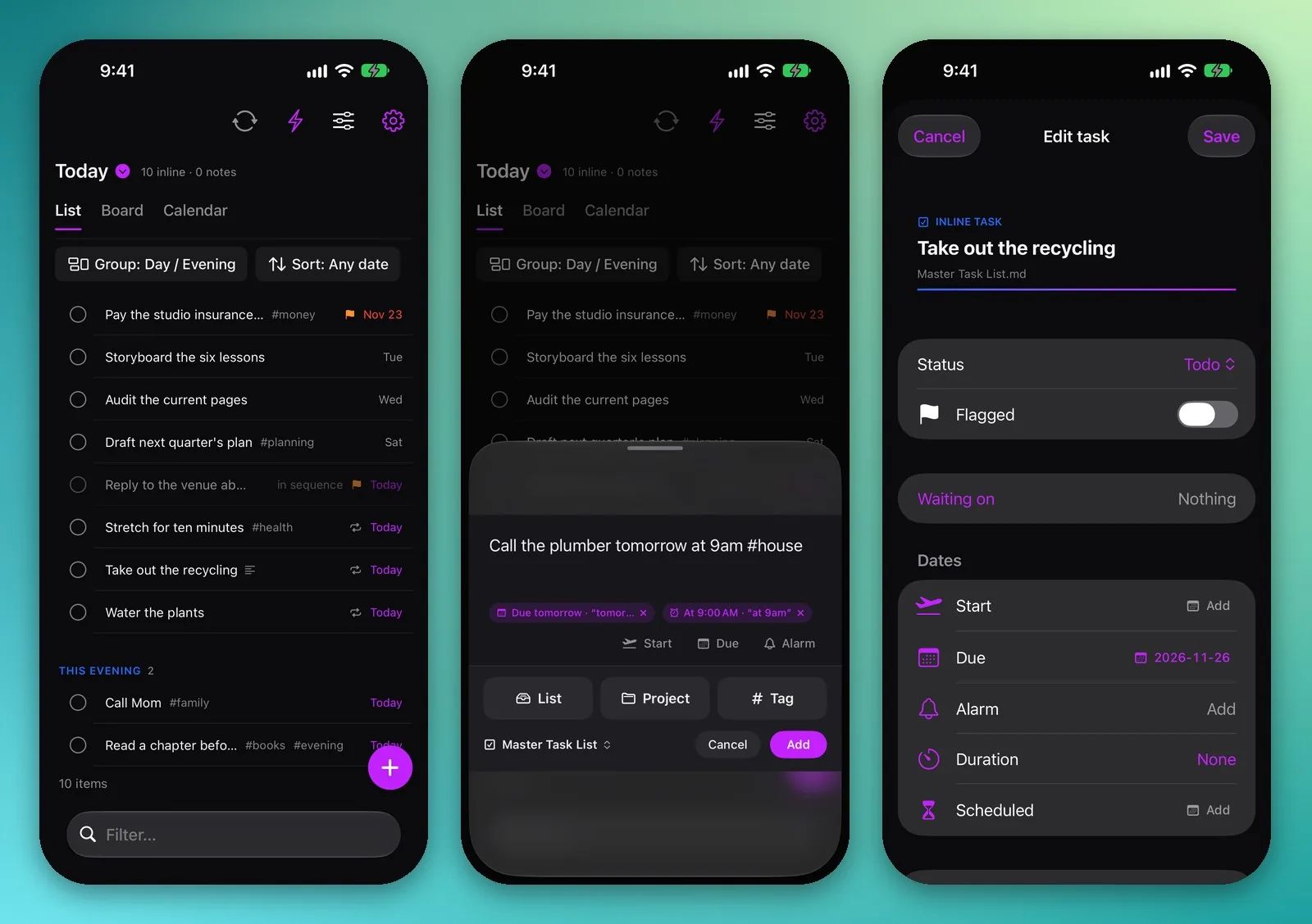
There's no sidebar. Tap the view title (the name with the chevron) to switch: Inbox, Forecast, Quarter, Flagged, Review, a Projects submenu, a People submenu, every view and list, plus Edit, Copy Code Block, Copy Link and New List….
Today and This Evening
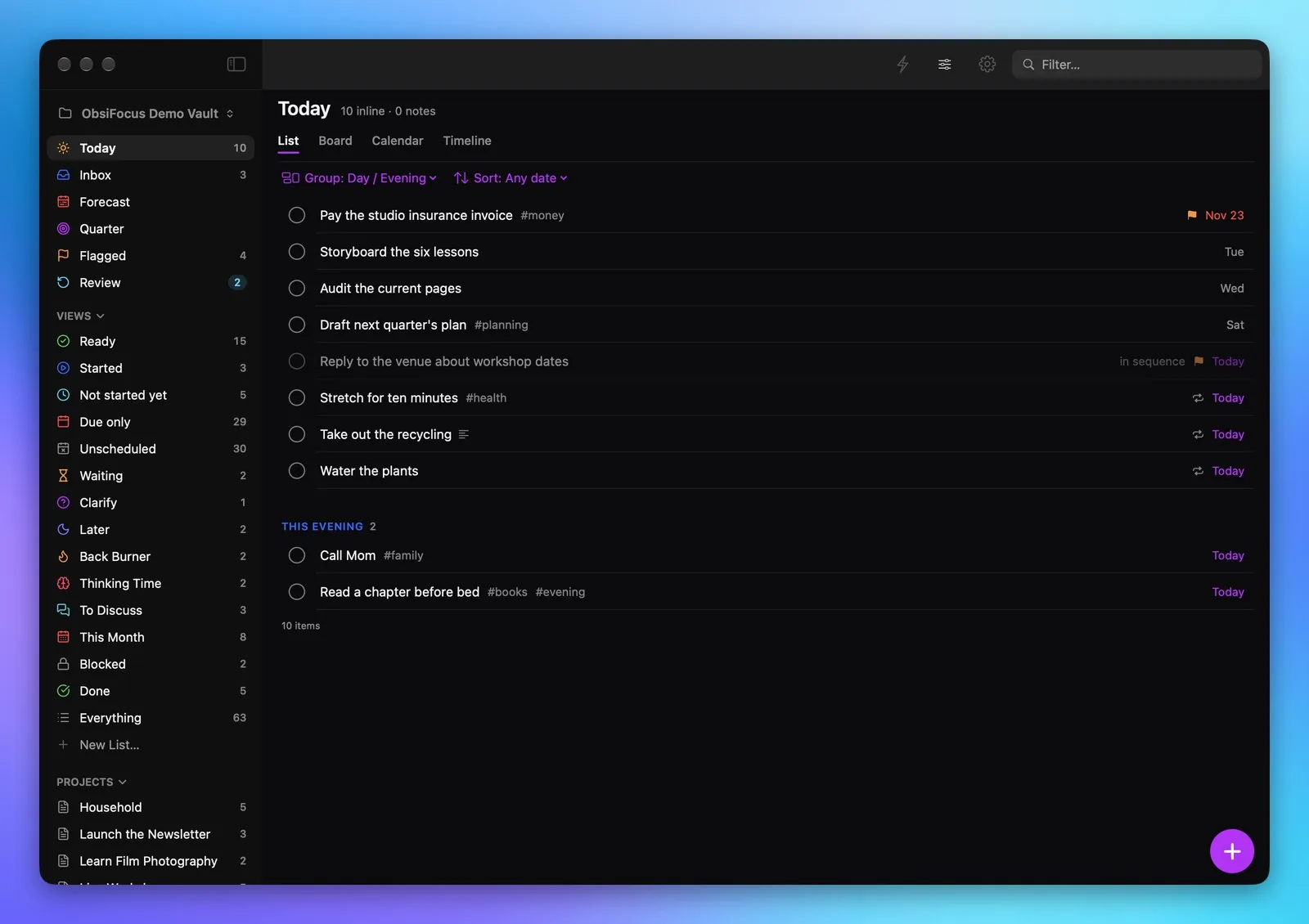
Today shows everything starting, scheduled or due today, plus anything overdue — so a task whose alarm is today is here. At the bottom is This Evening: tasks with an alarm at 5 PM or later, or tagged #evening.
- Right-click a task → This Evening (or Move to Day) to move it.
- On iPhone, keep pulling a left swipe past the flag action to toggle This Evening.
Focus
Focus narrows the whole app to one project: every view, count, Triage and the dock badge show only that project's world (the project note, everything tagged with it, and their subtasks). A banner reads Focused on … with Show Everything.
- Turn it on from a project's right-click menu, or press ⇧⌘F while viewing a project.
- ⇧⌘F again (or Show Everything) turns it off.
- Widgets ignore Focus on purpose, so your Home Screen never hides due work.
Quick Open
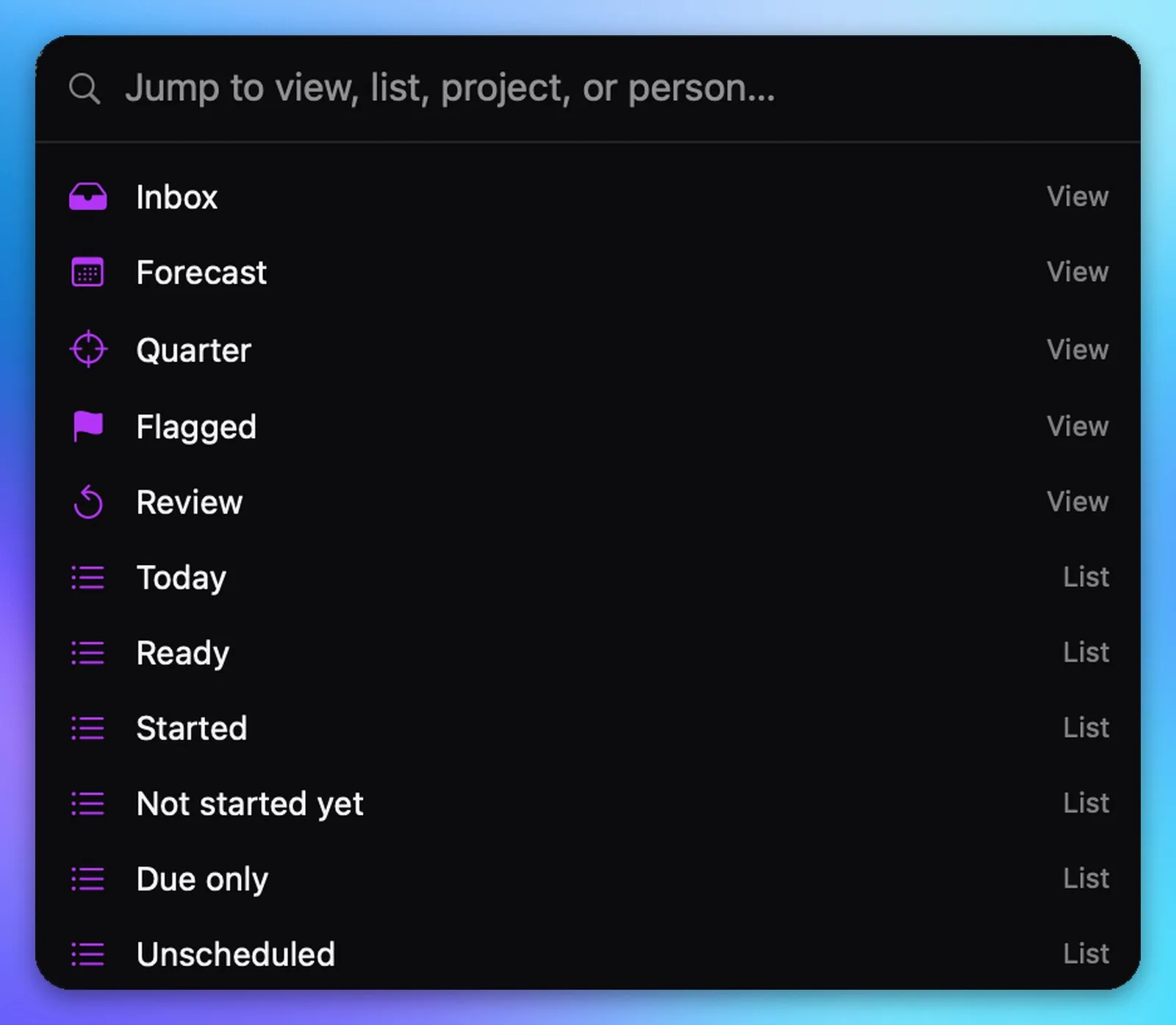
Press ⌘K and type to jump to any view, list, project or person. Return opens the top match.
Filtering
⌘F puts you in the Filter… field, which narrows the current view by title.