
Chapter 4
Editing Tasks
Click a task (or press Return on it) to open the editor. Save writes only the fields you changed; Cancel writes nothing.
The header
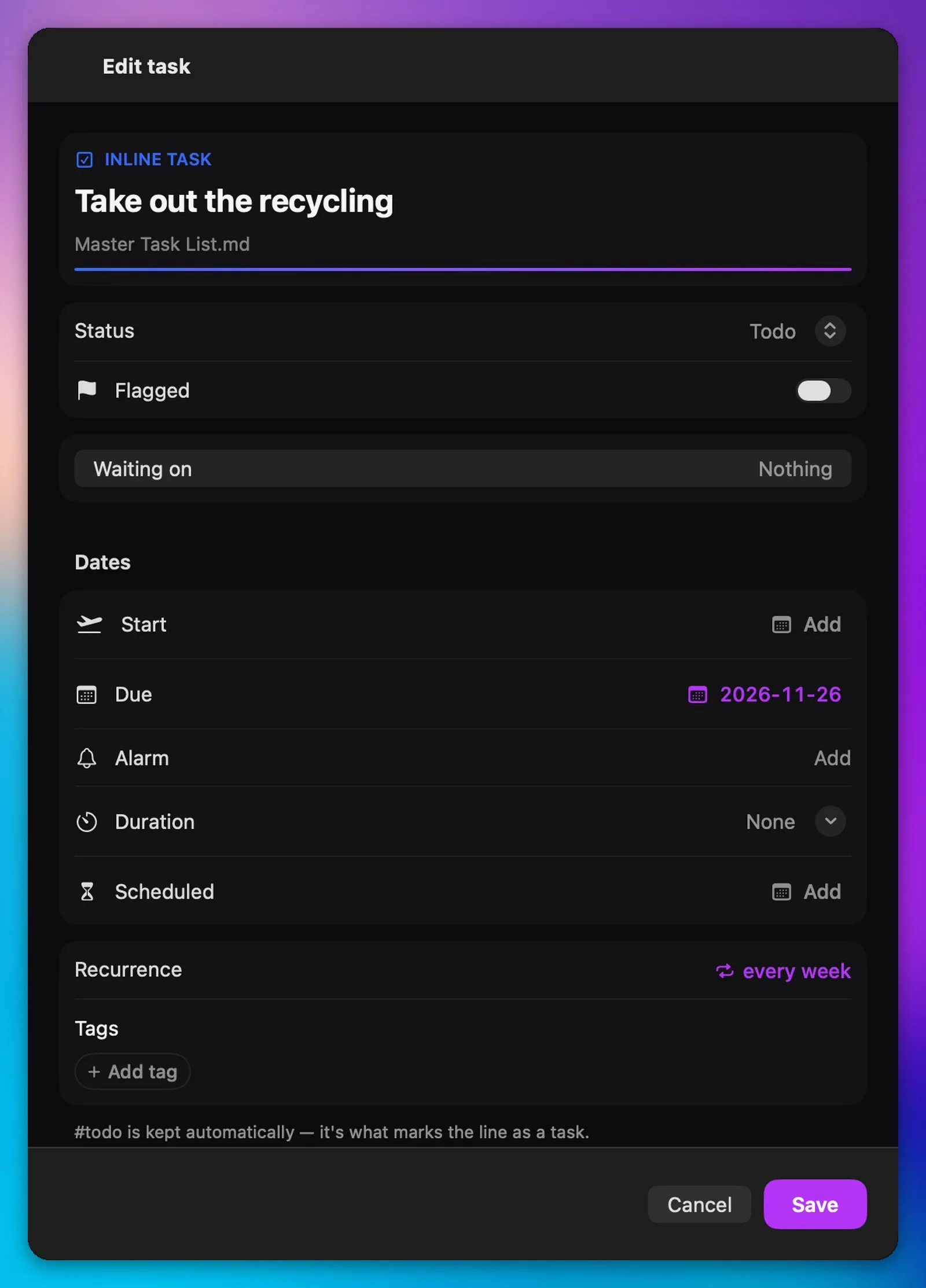
The kind (Inline task or Task note, plus its source), the title, and the file it lives in. Renaming a task note renames the file and updates every [[link]] to it across the vault.
Status and Flagged
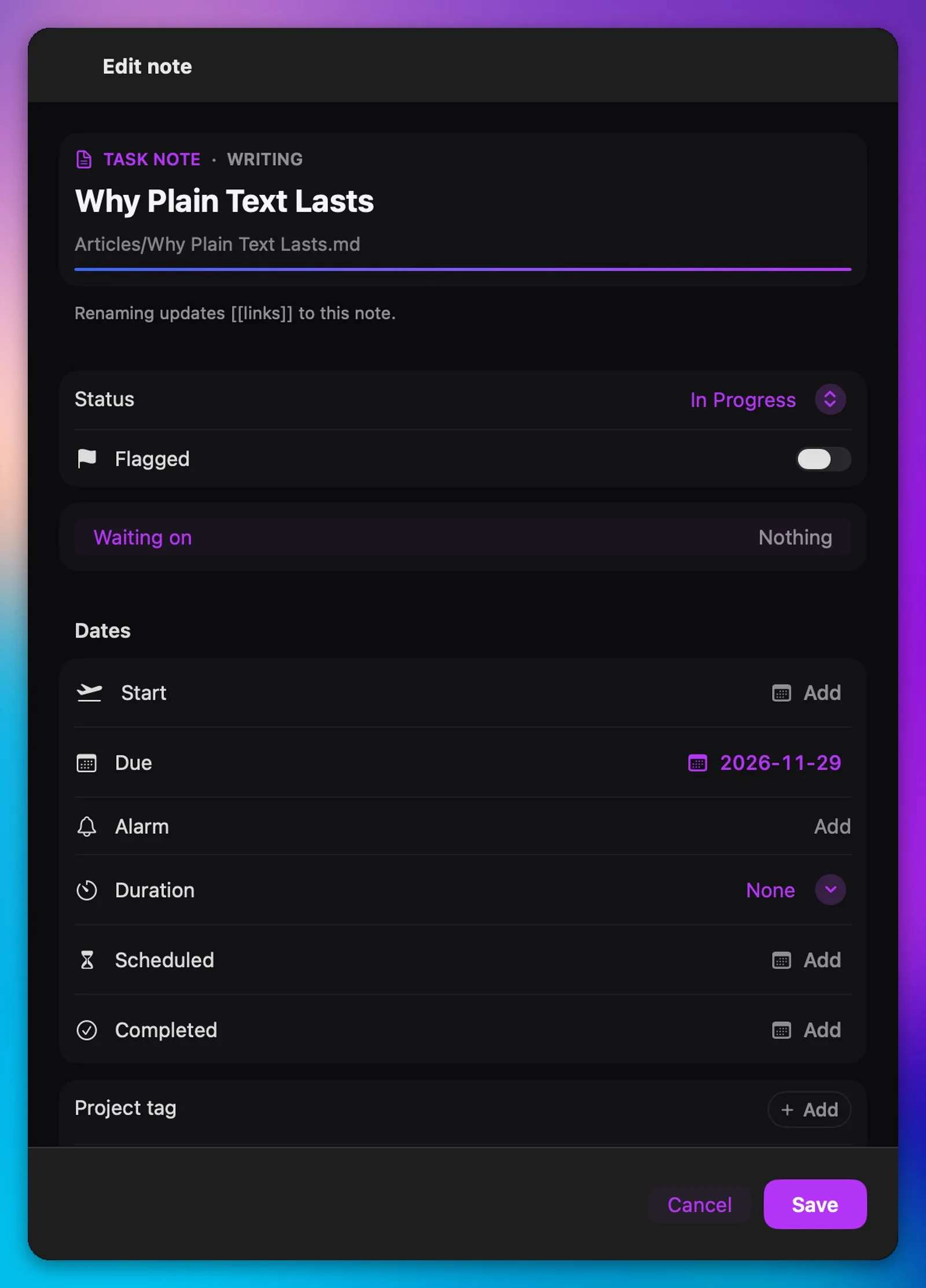
- Status — inline tasks list every status defined in the Tasks plugin (including your custom ones); task notes list the statuses their source supports. Choosing a done status completes the task properly, recurrence included.
- Flagged — on sets high priority (⏫); off removes it.
Open in Obsidian, Project page, Waiting on
- Open in Obsidian jumps to the task's line (or the note).
- Project page (task notes with a project tag) opens the project — see Projects, Review and People.
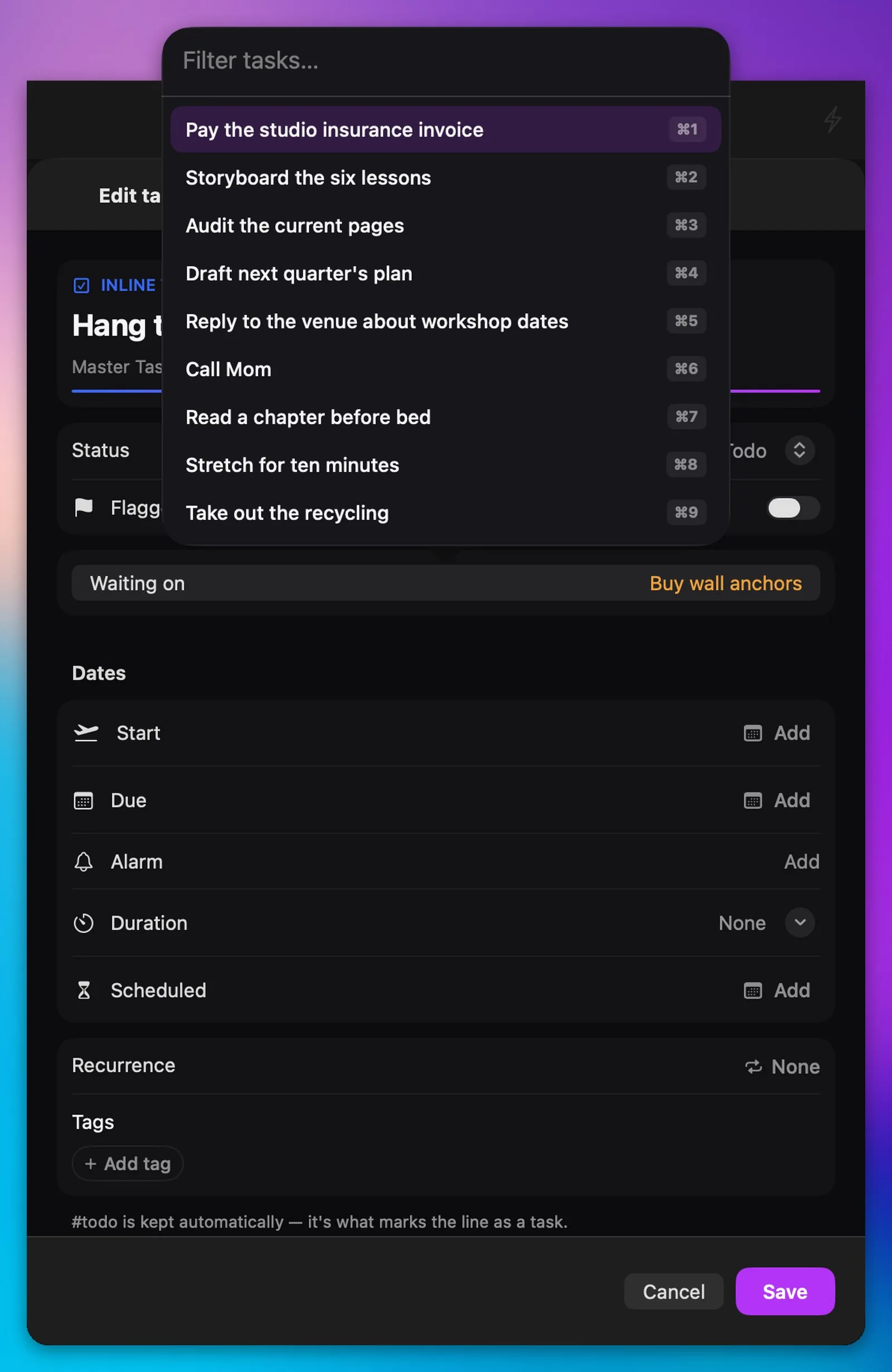
- Waiting on — the tasks this one is blocked by, line tasks or task notes. It opens the same filter panel used everywhere: type to narrow, click (or ⌘1–9) to toggle. Picked tasks show a check, and you can pick several. A blocked task drops out of Ready until its blockers are done, and shows in Blocked.
- A line task gets
⛔with its blockers' ids (each blocker gets an🆔if it needs one). - A task note gets a
waiting-on:property listing[[links]]to notes and ids of line tasks. If a line task waits on a note, that note gets anid:property.
- A line task gets
Dates
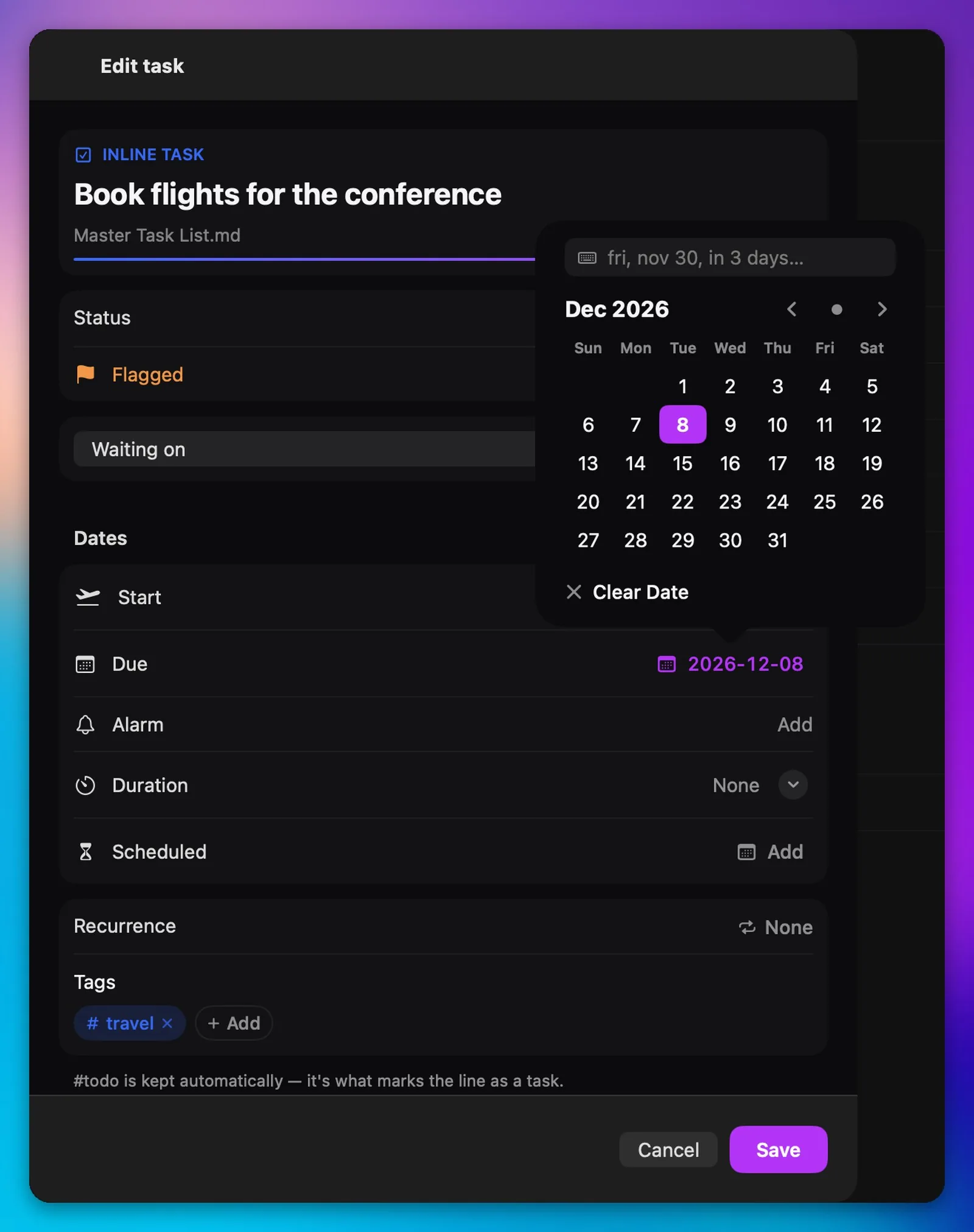
| Row | Writes (inline) | Meaning |
|---|---|---|
| Start | 🛫 |
Not actionable before this day |
| Due | 📅 |
The deadline |
| Alarm | ⏳ + ⏰ |
When to remind you — see below |
| Duration | ⏱ |
5 min to 4 hours, or None |
| Scheduled | ⏳ |
The day you plan to do it |
| Completed | — | Task notes only, for notes finished before they had a completed date |
Task notes write the same dates to their frontmatter properties instead.
Alarm
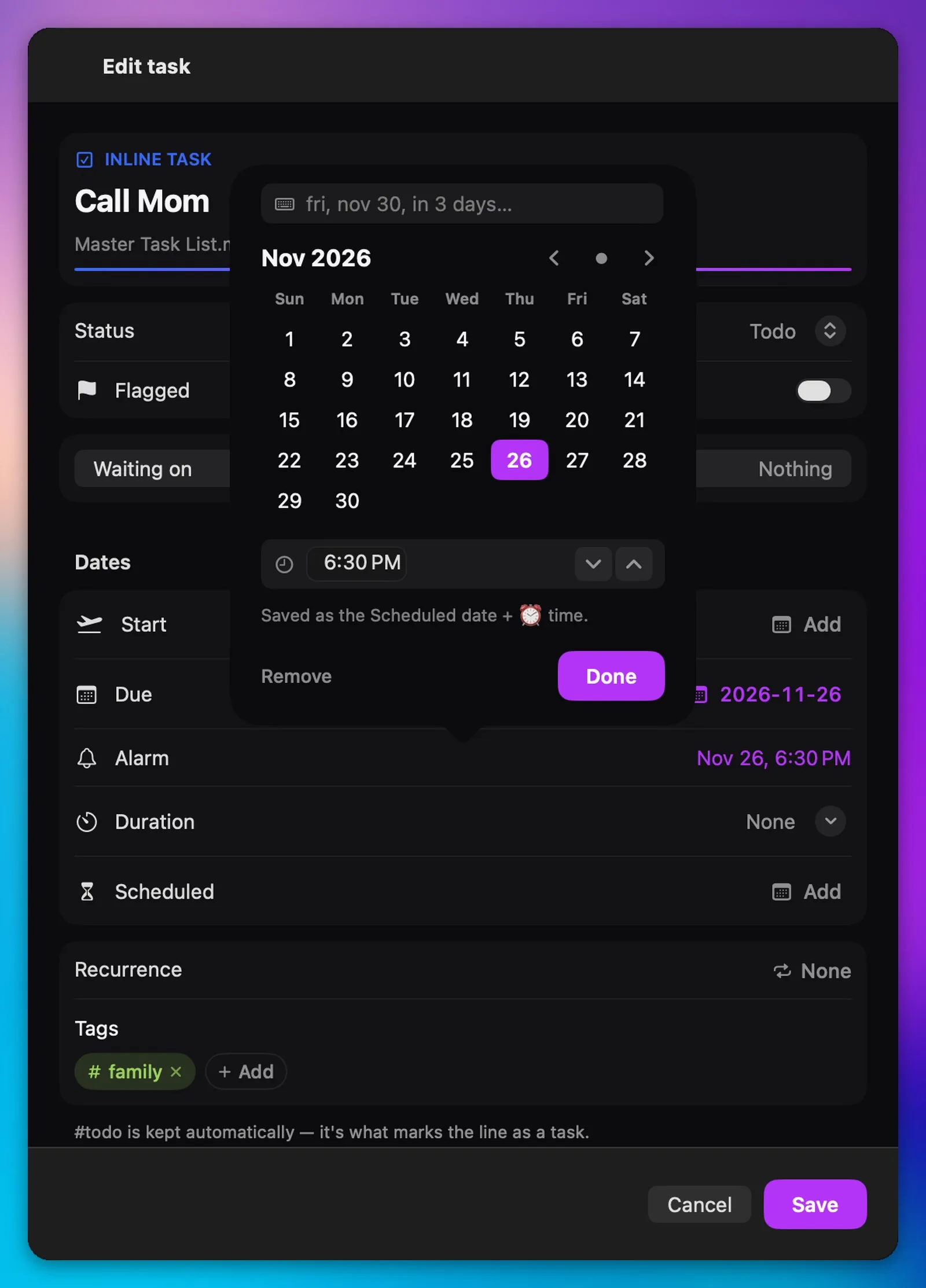
One idea: remind me at this moment. Tap Add (or the current alarm) to open it.
- At a time — pick a day and a time. The day becomes the task's Scheduled date and the time is written as
⏰. The task then nags you at that moment until you complete or snooze it. An alarm at 5 PM or later also puts the task under This Evening. - At a place — only when Location is on in Settings. Search for a place (results appear as you type) or use your current location, choose When I arrive or When I leave, and set the radius. The place is saved in your vault, and your iPhone sets up the alert.
- Remove clears the alarm.
On the Mac, the day is picked from the same calendar as Start and Due (you can type "fri", "nov 30", "in 3 days"…), with the time underneath: type it, or click the ⌄ ⌃ arrows to move it 15 minutes at a time (they snap to the quarter hour). On iPhone, it's a wheel.
Reminders made with older versions of the app are listed in the alarm as Older reminders. They still fire, and you can delete them there.
More in Alarms and Notifications.
Repeat
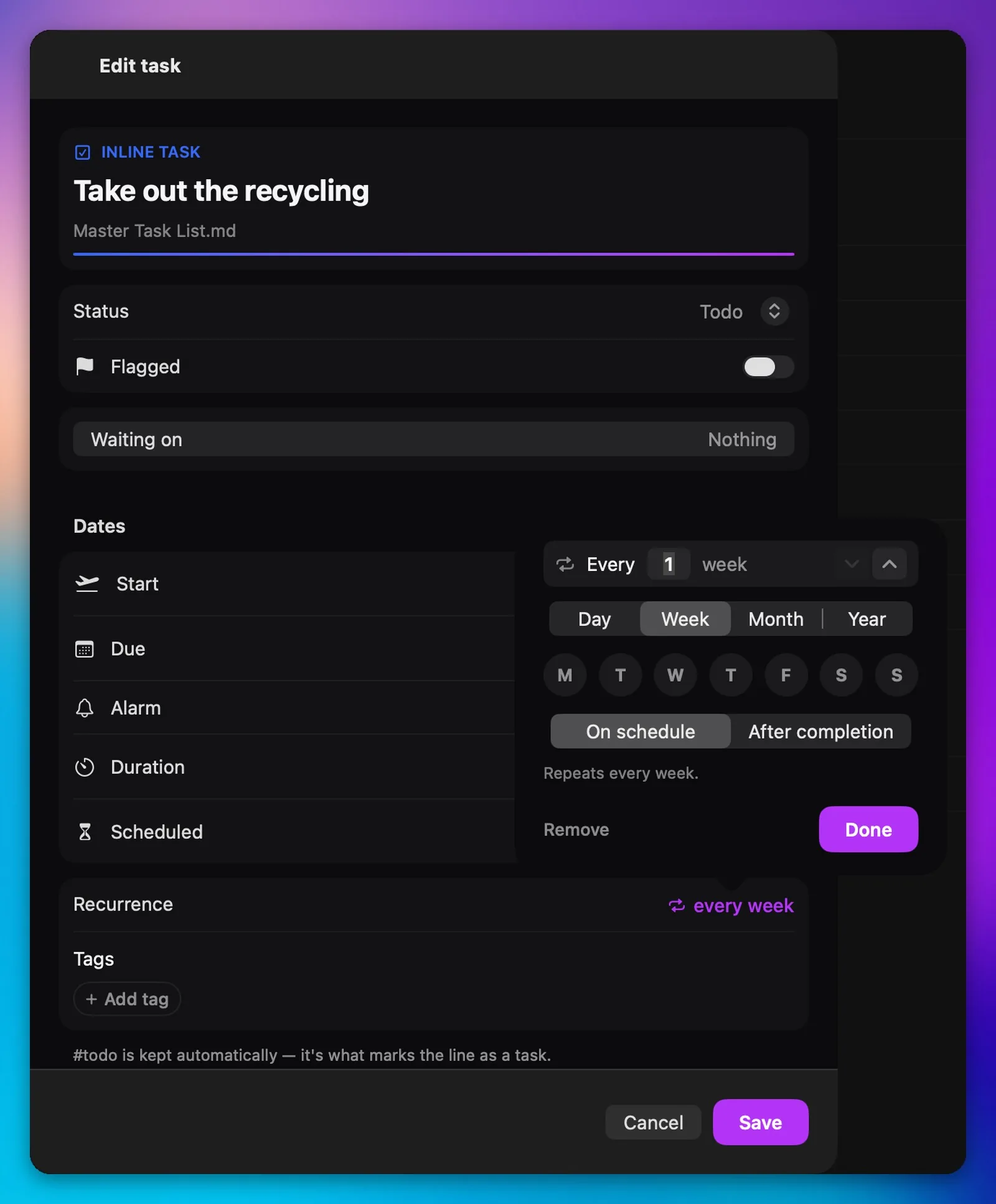
Opens the repeat editor (line tasks and task notes alike, from the editor or the list's Repeat column). It's laid out like the Alarm:
- Every N — type the number, or use the ⌄ ⌃ arrows (the – + stepper on iPhone)
- Day / Week / Month / Year
- For weeks, tap the weekdays (M T W T F S S); for months, On day (a date, or the same day)
- On schedule (fixed dates, the default) or After completion (counts from when you finish)
The rule it will save reads underneath (for example Repeats every 2 weeks on Monday, Thursday when done). Done saves it, Remove takes the repeat off, and clicking away (or Cancel on iPhone) changes nothing.
- On a line task it's saved as
🔁. Completing it creates the next one with fresh dates, exactly as the Tasks plugin does. - On a task note it's saved as a
repeat:property. Completing it moves the same note forward: its dates jump to the next occurrence, it goes back to To Do, and the date you finished is added to acompletions:list. Whatever you've written in the note stays put.
Properties appear only when used
repeat:, waiting-on:, id: and completions: are only added to a note when there's something to store, and removed when you clear them. ObsiFocus never adds empty properties or changes others.
If the task has a rule written by hand that the editor can't represent (like every weekday), it's shown and kept as is — it's only replaced if you change something in the editor.
Tags and Project tag
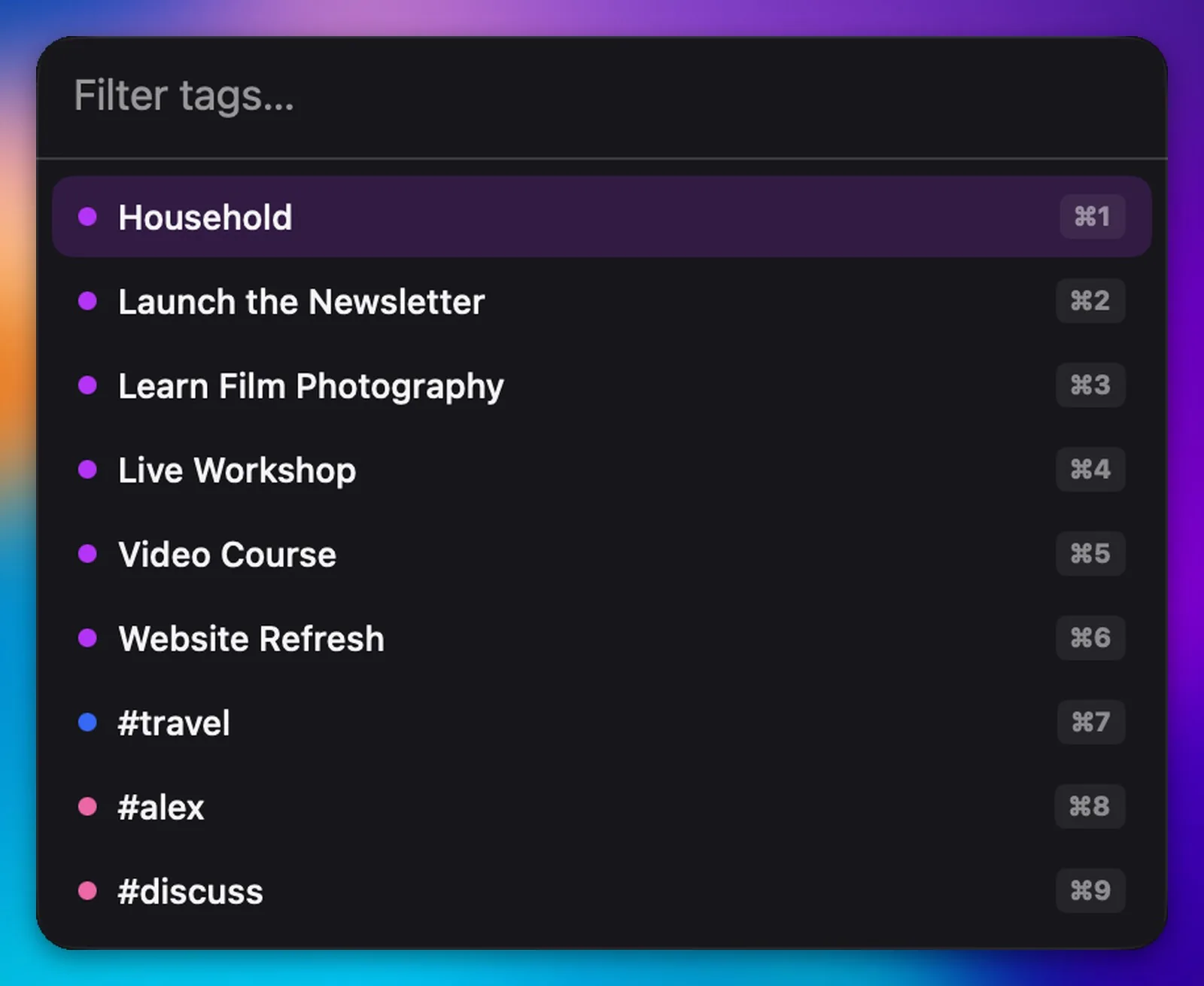
- Tags — click Add to open the filter panel: your projects first, then your tags by how often you use them. Typing a new name offers Create #tag. Your global filter tag (
#todo) is kept automatically — it's what marks the line as a task. - Project tag (task notes) — gives the note a project tag. Every task with that tag, anywhere in your vault, then appears under this note.
Notes
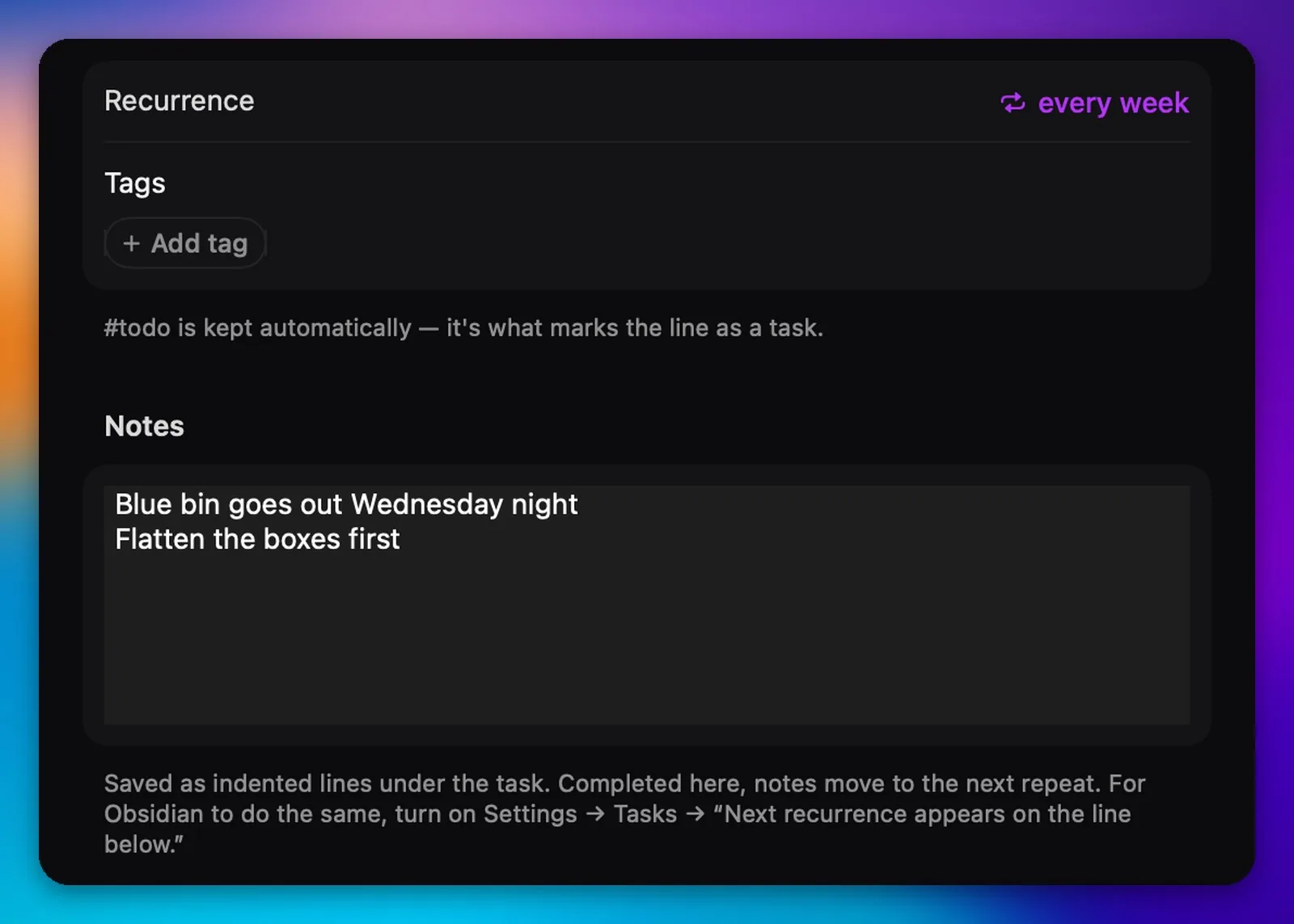
Every task has a Notes box at the bottom of the editor.
- Task notes — it's the note's body, below the frontmatter.
- Line tasks — notes are saved as indented lines right under the task, so they show up under it in Obsidian too. It's the same format TaskForge uses for task descriptions, so notes written in either app read the same in both:
- [ ] #todo Book flights for the conference 📅 2026-12-01 🆔 LIiBIx
  - Delta 7am out of MSP if it's still there
    Aisle seat
Lines you've already indented under a task by hand count as its notes too — bullets, tabs or plain text. A checkbox (that's a subtask), a blank line, or a line that isn't indented deeper than the task ends them. Blank lines inside notes are dropped when ObsiFocus saves them. Nothing is written until you type something, and clearing the box removes the lines.
Tasks with notes show a small notes icon (on the Mac, hover over it to read them). The filter (⌘F) searches notes too. Deleting a task deletes its notes; completing a task leaves them with it.
Notes on repeating tasks
When you complete a repeating task, the Tasks plugin writes a finished copy and a new one — but the indented notes aren't part of either line, so they stay wherever they were and belong to whichever copy is right above them.
- Completed in ObsiFocus — the notes always move to the new, open copy.
- Completed in Obsidian — it depends on one Tasks setting: Settings → Tasks → Next recurrence appears on the line below.
- Off (the Tasks default): the new copy goes above the finished one, so the notes stay with the finished copy.
- On: the finished copy comes first and the new one sits right above the notes, so they follow the task.
Turn it on
If you keep notes on repeating tasks, turn Next recurrence appears on the line below on in Obsidian, so both apps behave the same. While it's off, the editor reminds you under the Notes box of any repeating task.
Notes on a repeating task belong to the series — the finished copies don't keep their own.