
Chapter 3
Layouts
Every view can be shown four ways. Switch with the tabs under the title, or ⌘1–⌘4. Each view remembers its own layout.
| Layout | Mac and iPad | iPhone |
|---|---|---|
| List | ✓ | ✓ |
| Board | ✓ | ✓ |
| Calendar | Month grid | Day-by-day agenda |
| Timeline | ✓ | — |
List
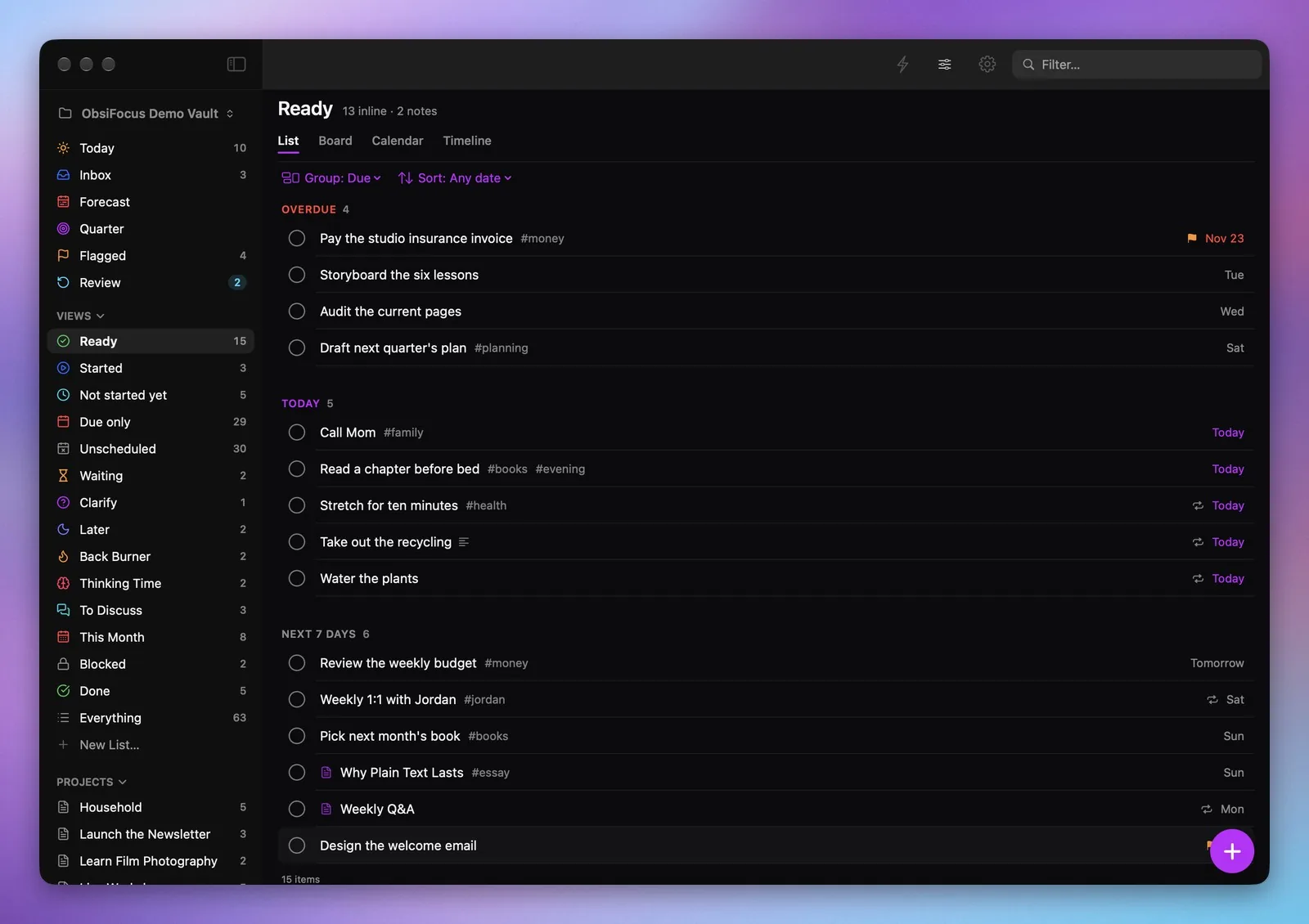
Tasks in groups, each with a header and count. Subtasks sit indented under their parent.
- Group: None, Status, Priority, Due, Project, Source, Kind, Path, or Day / Evening.
- On a wide window, rows line up in columns. Click a column header to sort by it; click again to reverse. (That sort lasts until you pick another from the Sort menu.)
- On the Mac, lists can be driven from the keyboard — see Keyboard Shortcuts › Lists.
Board
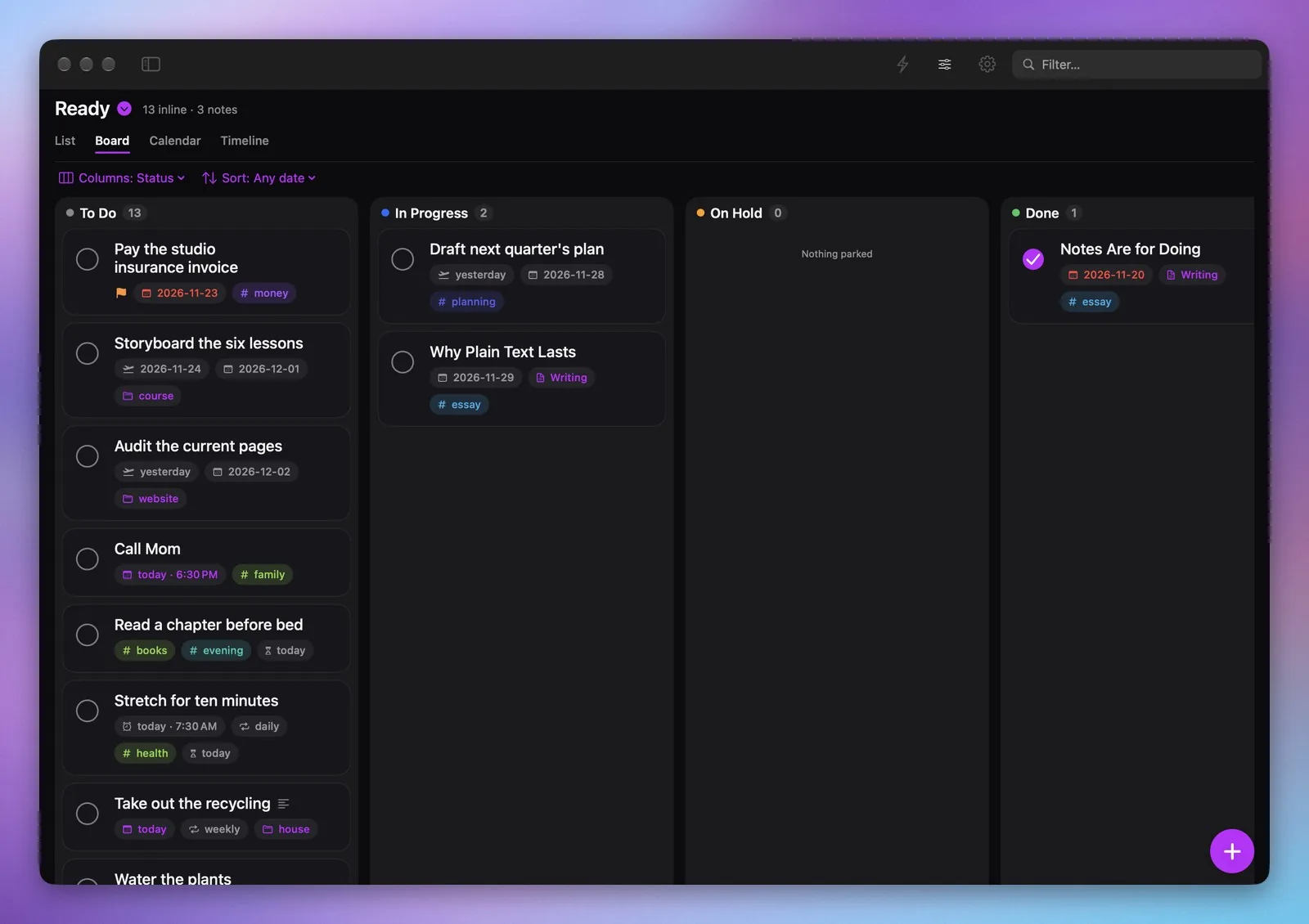
Cards in columns. Choose what the columns are with Columns:
| Columns by | Columns | Dropping a card… |
|---|---|---|
| Status | To Do, In Progress, On Hold, Done | sets that status (Done completes it) |
| Due date | Overdue, Today, Next 7 days, Later, No date | Today → today · Next 7 days → a week from today · Later → 8 days out — each moves the date that placed the card · No date → clears due, scheduled and start |
| Project | Each open project, plus No project | moves the task to that project |
| Tag | Your 8 most-used tags, plus No tag | swaps that tag on, the other column tags off |
- Drag a card and the others slide aside to make room; it shows faded where it will land. Carry it into another column the same way (where that column takes cards). Let go to drop it there; drop it outside the board and it slides back.
- Drag a column header to reorder columns. On the Status board the order is saved in your vault.
- The Status board's Done column shows the last 14 days (change it in Settings → Tasks).
Calendar
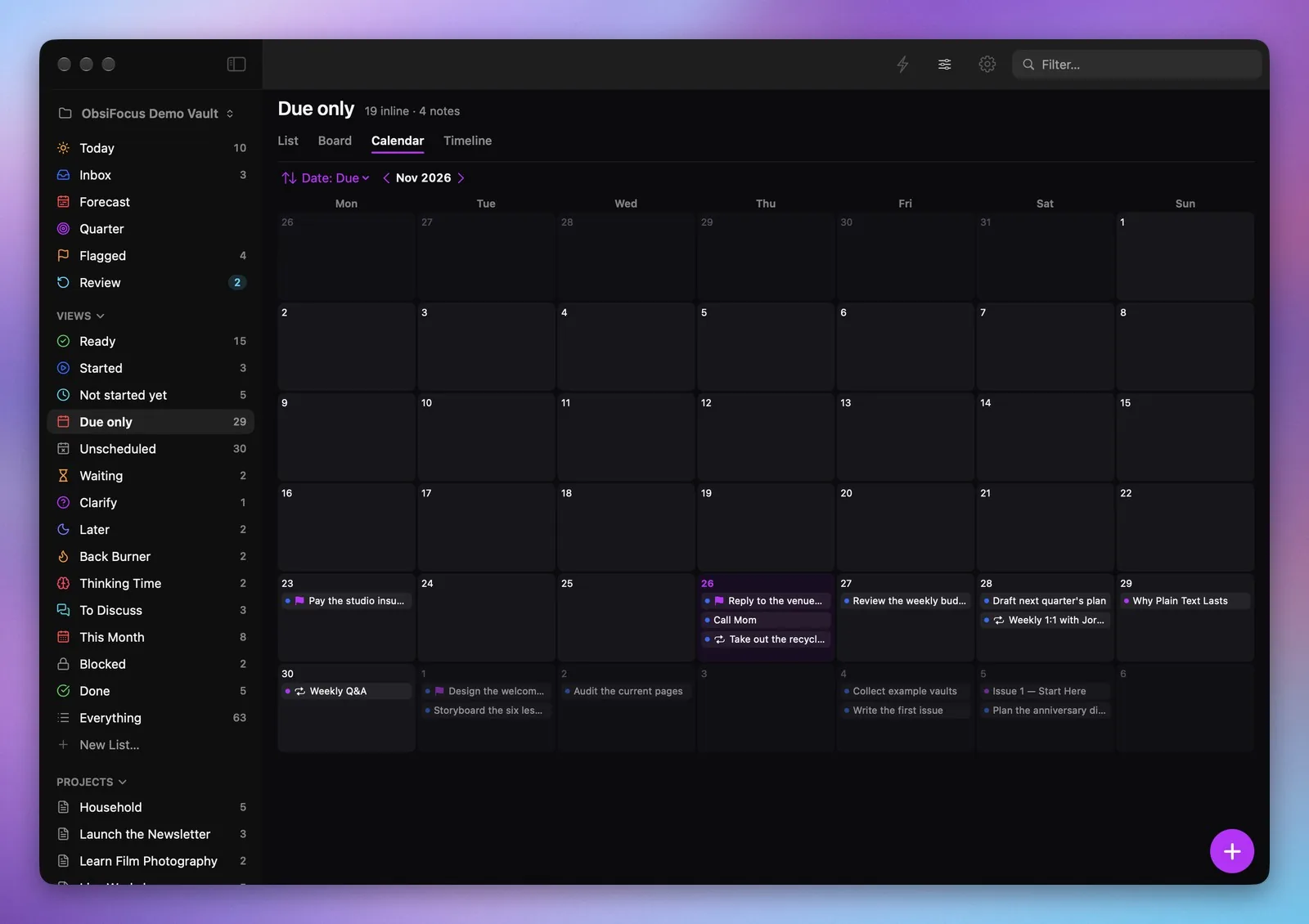
On the Mac and iPad, a month grid. Date: picks which date places each task (Due by default). Use ‹ › to change months.
- Drag a task to another day to move the date that put it there (the one Date: shows), the same rule as Forecast.
- Click a task to edit it.
On iPhone, Calendar is an agenda: one section per day that has something on it (TODAY marked), from a week back to about six weeks ahead. Rows swipe like any list.
Timeline
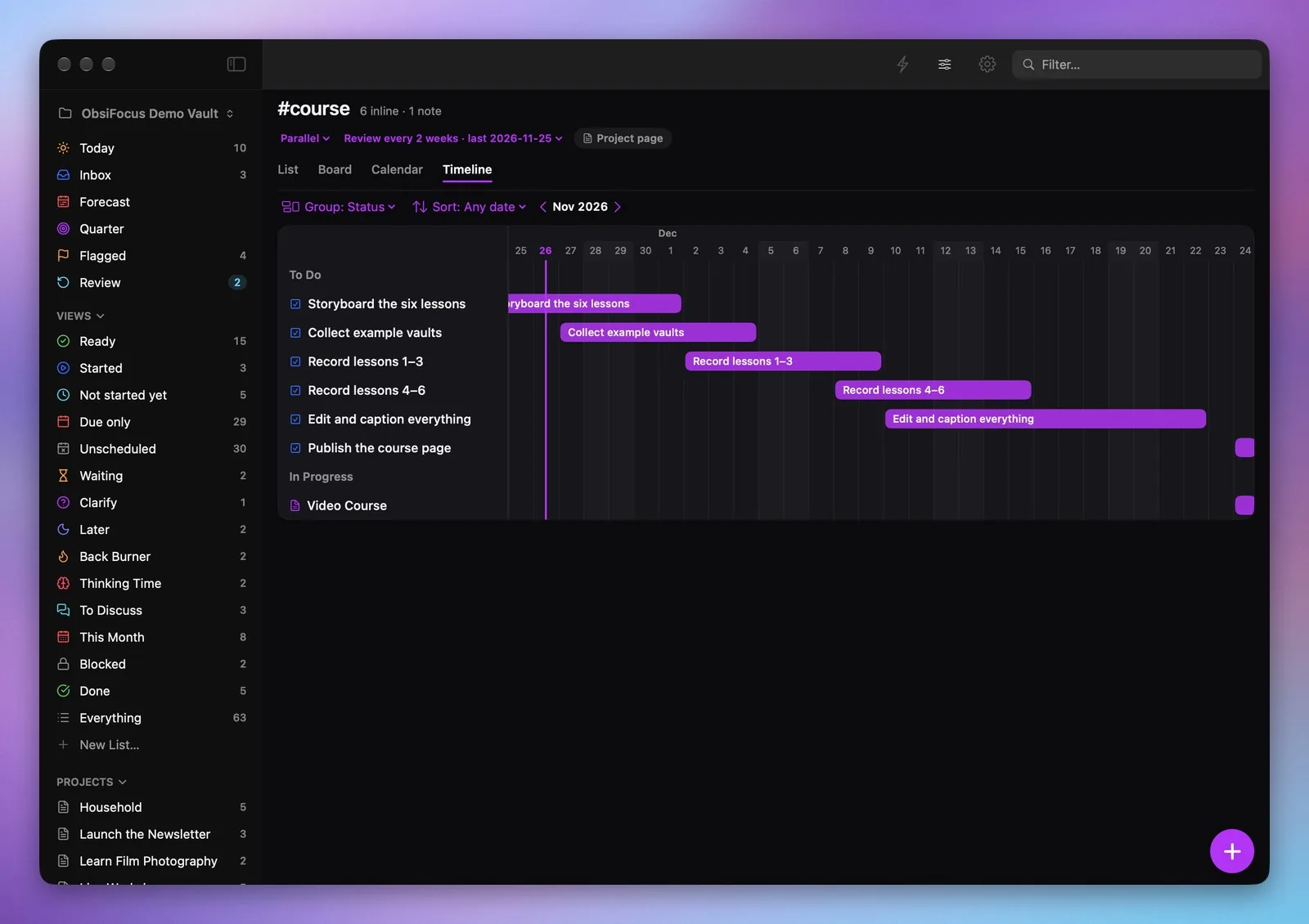
A Gantt view (Mac and iPad): each task is a bar from its start date to its due date; a task with one date gets a one-day bar. Today is a line, weekends are shaded, and it opens scrolled to yesterday.
- Drag the middle of a bar to move both dates.
- Drag either end to change just the start or the due date. Start never passes due.
Sorting
Sort: Any date (the earliest of start, scheduled and due) · Due · Start · Completed · Manual (not on Calendar).
Dragging a row (List) or card (Board) makes room for it as you go, then switches the view to Manual when you drop it somewhere new (dropping it back where it was changes nothing). In the List, a row moves within its own group. On iPhone, hold a row until it lifts, then drag. Your manual order is saved in the vault per view, so it's the same on every device.
What each row shows
The options button (slider icon) chooses which fields appear in the current layout — Kind, Status, Flag, Start, Due, Completed, Duration, Recurring, Project, Source, Tags, File — with Reset to defaults. It also has Show closed (and, on iPhone, Select).
Alarms on rows
When a task's alarm is on its due day, the time rides the due pill ("tomorrow · 2:00 PM"). When it has a Scheduled date, the alarm gets its own pill ("Nov 30 · 9:00 AM").
Changing many tasks at once
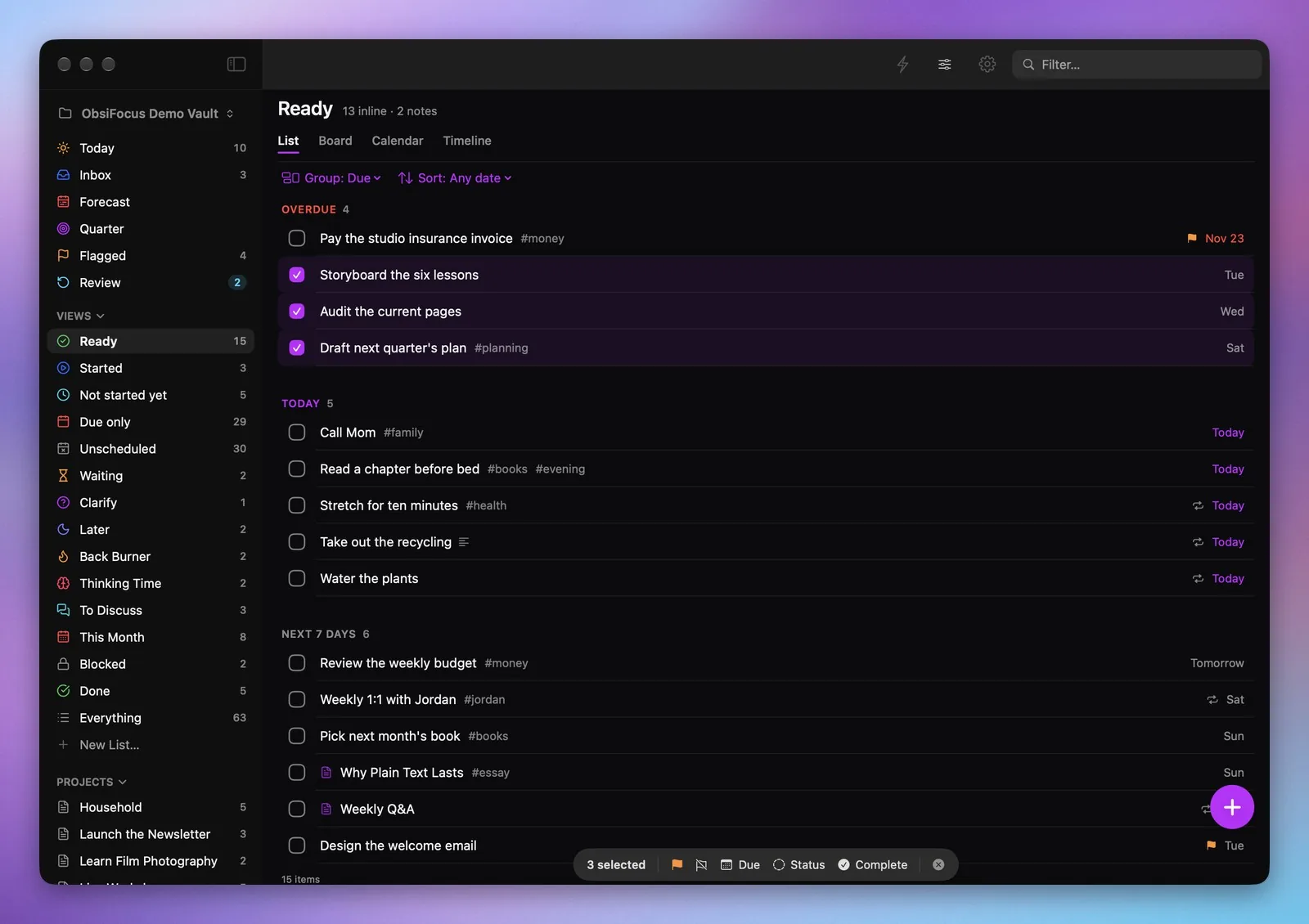
Select several tasks, then flag, date, set the status of, or complete them all together. It works in every layout — List, Board, Calendar and Timeline.
Start selecting
- Mac: press ⇧⌘S, or ⌘-click a task (⇧-click selects a range in List). ⌘A selects every task in the view.
- iPhone / iPad: options button → Select.
While selecting, each task shows a checkbox, and a click (or tap) anywhere on a task just selects it — clicking its flag or a date won't change it. A bar at the bottom has:
- Flag all / Unflag all
- Due: Today, Tomorrow, Next Week, Clear Date
- Status: To Do, In Progress, On Hold, Done, Cancelled
- Complete
- ✕ to stop selecting — or Esc / ⇧⌘S on the Mac
On a phone the bar shows icons only.
Right-click menu
On any task: Complete, Edit…, Due Today / Tomorrow / Next Week, This Evening (or Move to Day), Clear Due Date, Copy ObsiFocus Link (⌃⌘C — see Finding Your Way › Links), Open in Obsidian, Copy Obsidian Link, and Delete Task (inline tasks only).