Chapter 12
Settings
Open with ⌘, (Mac) or the gear. Five tabs: General, Tasks, Sources, Quarter, Write-back (called Writing on iPhone).
No Save button
Every setting saves as you change it; Done just closes Settings. Settings that change how the vault is read (global filter, excluded folders, sources) apply a moment after you stop typing.
General
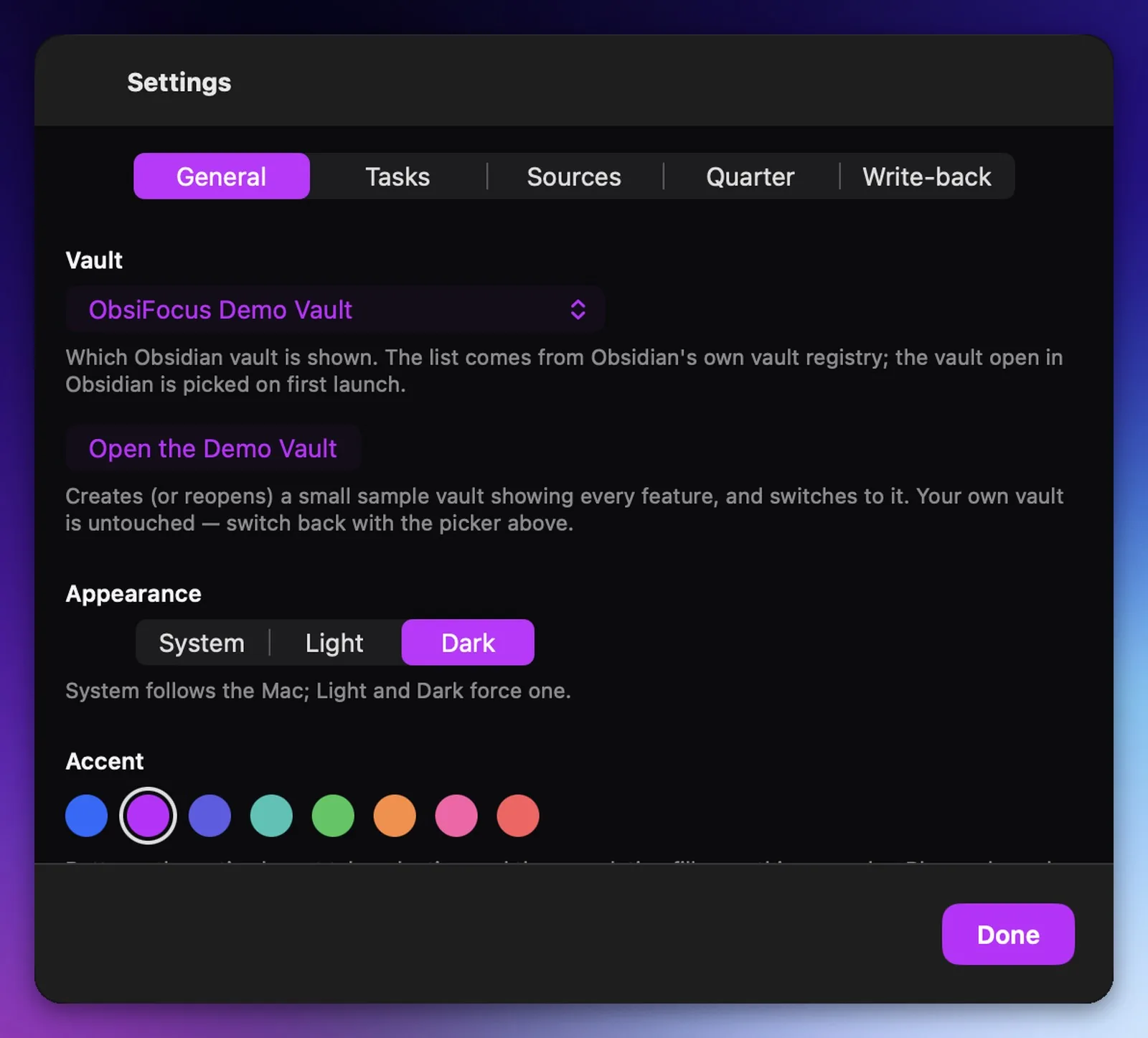
Vault
- Mac: pick from the vaults Obsidian knows about.
- iPhone: Choose Folder… to pick the vault folder in Files.
- Open the Demo Vault — creates (or reopens) the sample vault and switches to it.
Appearance
- Appearance — System, Light or Dark.
- Accent — Blue, Purple, Indigo, Teal, Green, Orange, Pink or Red. Buttons, the active tab, selection and the completion fill wear this color.
- Open at Launch — Last used, Forecast, Quarter or Ready.
- Dock Badge (Mac) — count any of Overdue, Due today, Flagged, Available. Each task counts once; nothing checked means no badge.
Notifications
- Morning digest — when the daily summary arrives (4 AM–noon).
- Snooze buttons — the three snooze lengths on every nag (5 minutes to 8 hours).
- Location — turns on place alarms for this device. See Alarms and Notifications › Location alarms.
- Alarm nags — how often an alarm repeats until you act (every 1–60 minutes).
Triage
- Date verbs set — whether Today / Tomorrow / Next Week in Triage set the Due date or the Start date.
Siri Capture
- Import from Apple Reminders and the Reminders list to import from. See Capturing Tasks › Importing from Apple Reminders.
Forecast
- Days ahead (3–14) and Show calendar events.
Tasks
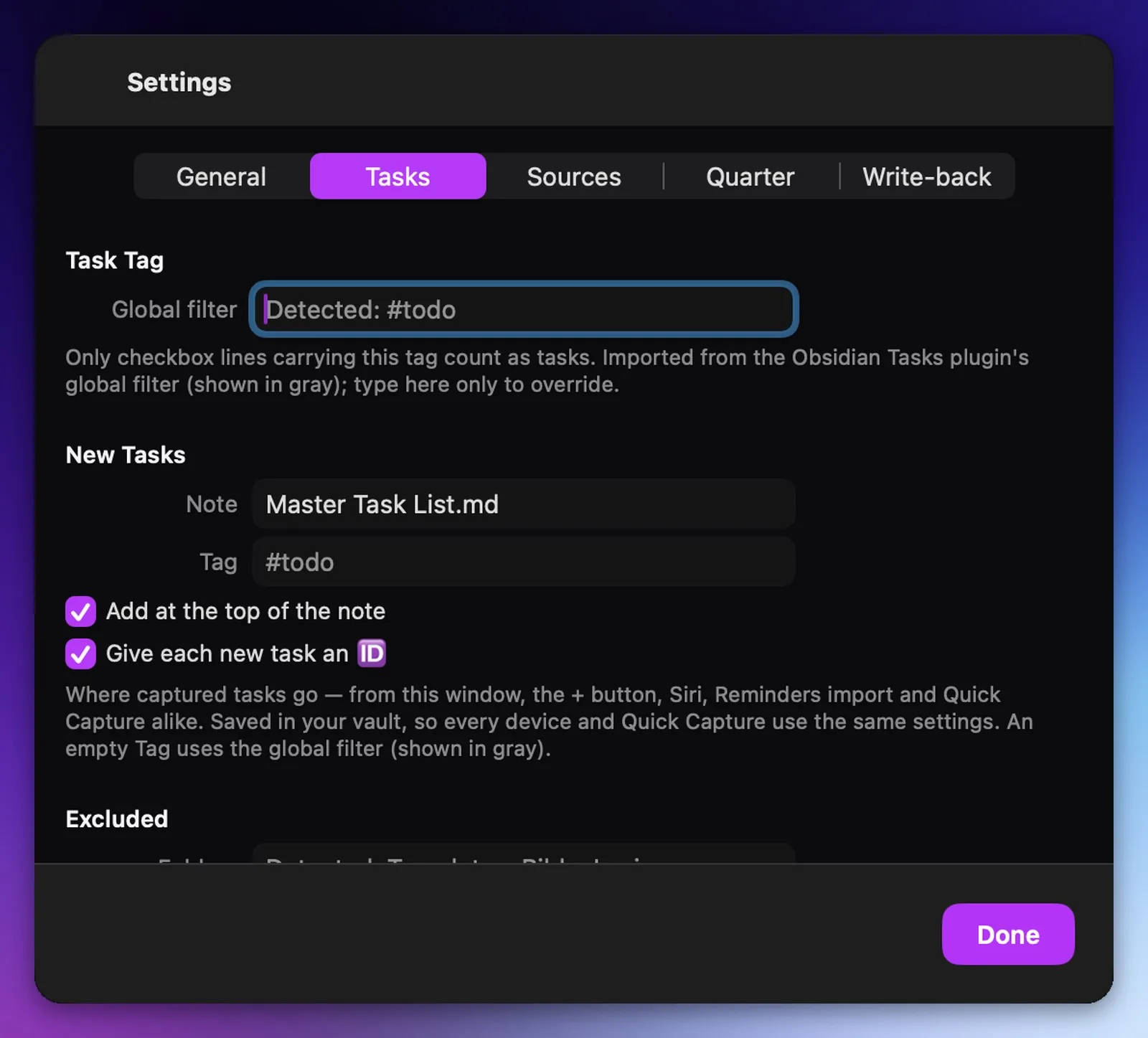
- Global filter — the tag that marks a line as a task (usually
#todo). The value detected from the Tasks plugin is shown in gray; type only to override it. - Excluded Folders / Files — comma-separated paths to skip.
- Skip Kanban boards — ignore Kanban plugin boards, whose cards are checkboxes too.
- Statuses — the Tasks plugin's status workflow: each checkbox symbol, its name, its type, and what completing moves it to. Built-in statuses are read-only and stay at the top; add your own with Add status, and drag a status by its ≡ grip to change where it sits in the status picker. Symbols found in your vault that aren't defined show up so you can add them. Changes are written to the Tasks plugin's own settings as you make them (Obsidian picks them up after a restart).
- Board → Done window — how many days of finished items the Status board's Done column shows.
New Tasks
Where captured tasks go — from the capture window, the + button, Siri, Reminders import and Quick Capture alike:
- Note — the note new tasks are added to (default Master Task List.md; when that note isn't at the top of the vault but sits one folder down, as in LifeHQ's Task Management folder, that's the one used).
- Tag — the tag put on each new task. Empty uses the global filter.
- Add at the top of the note — or at the bottom.
- Give each new task an 🆔.
These are saved in your vault, so every device and Quick Capture share them. In a folder started without Obsidian, this section simply says each task is saved as its own note in Tasks.
Sources
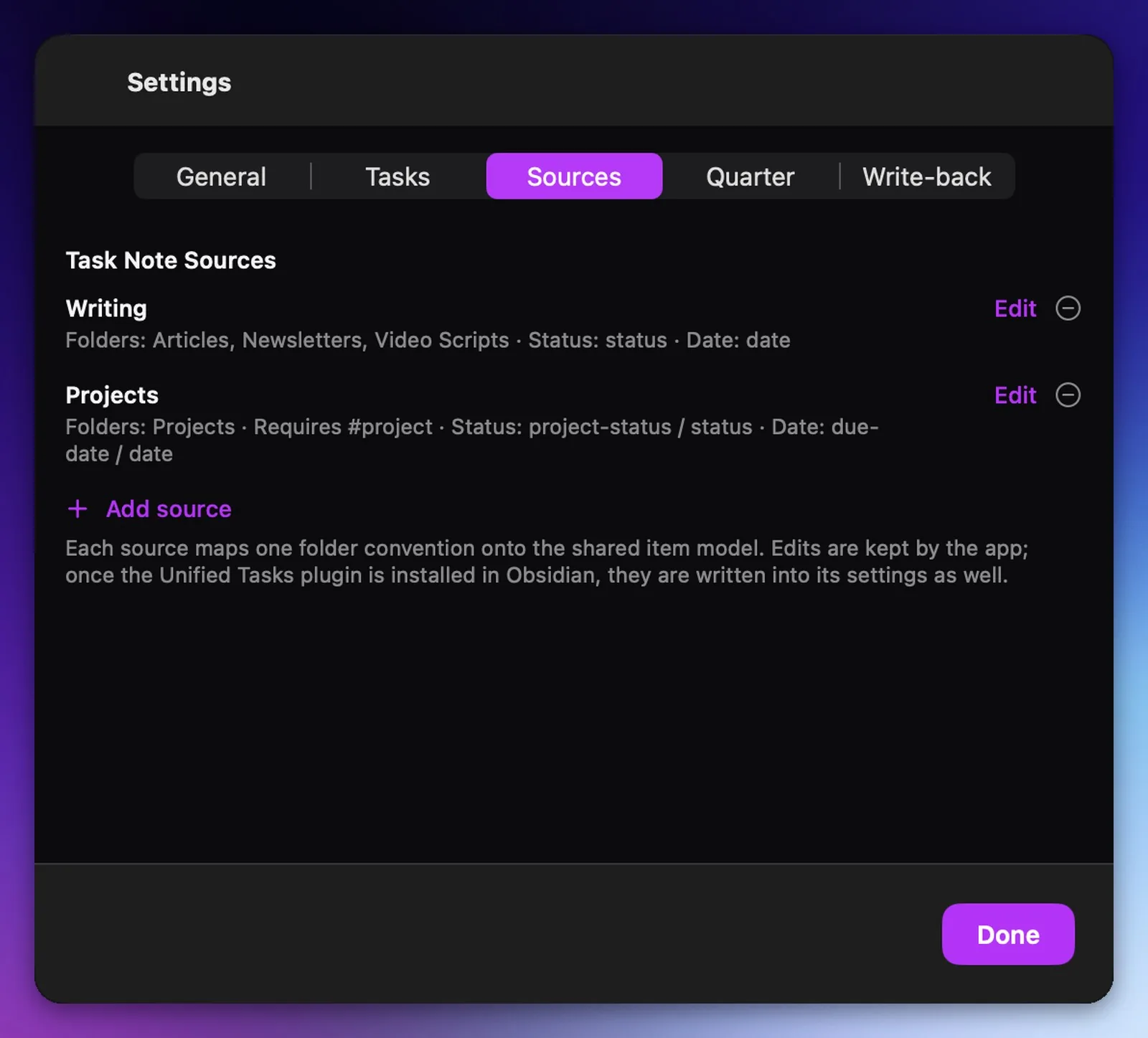
Which notes count as task notes. Each source has:
- a name and the folders it covers, and optionally a required tag;
- which frontmatter keys hold its status, due date, start, scheduled, completed, priority and tags;
- its status words — each word your notes use, and what it means (for example idea → On Hold, done → Done). Drag a word by its ≡ grip to reorder the list: the first word for each status is the one ObsiFocus writes when you change a note's status, and the status picker follows the same order. Until you reorder, the status's own name wins (done over published or complete). The other words are still read;
- where its project tag comes from: none, the first tag that isn't the marker, or a frontmatter key.
Add source, edit, or remove; Use the vault's resets to what the vault's Unified Tasks plugin defines.
Quarter
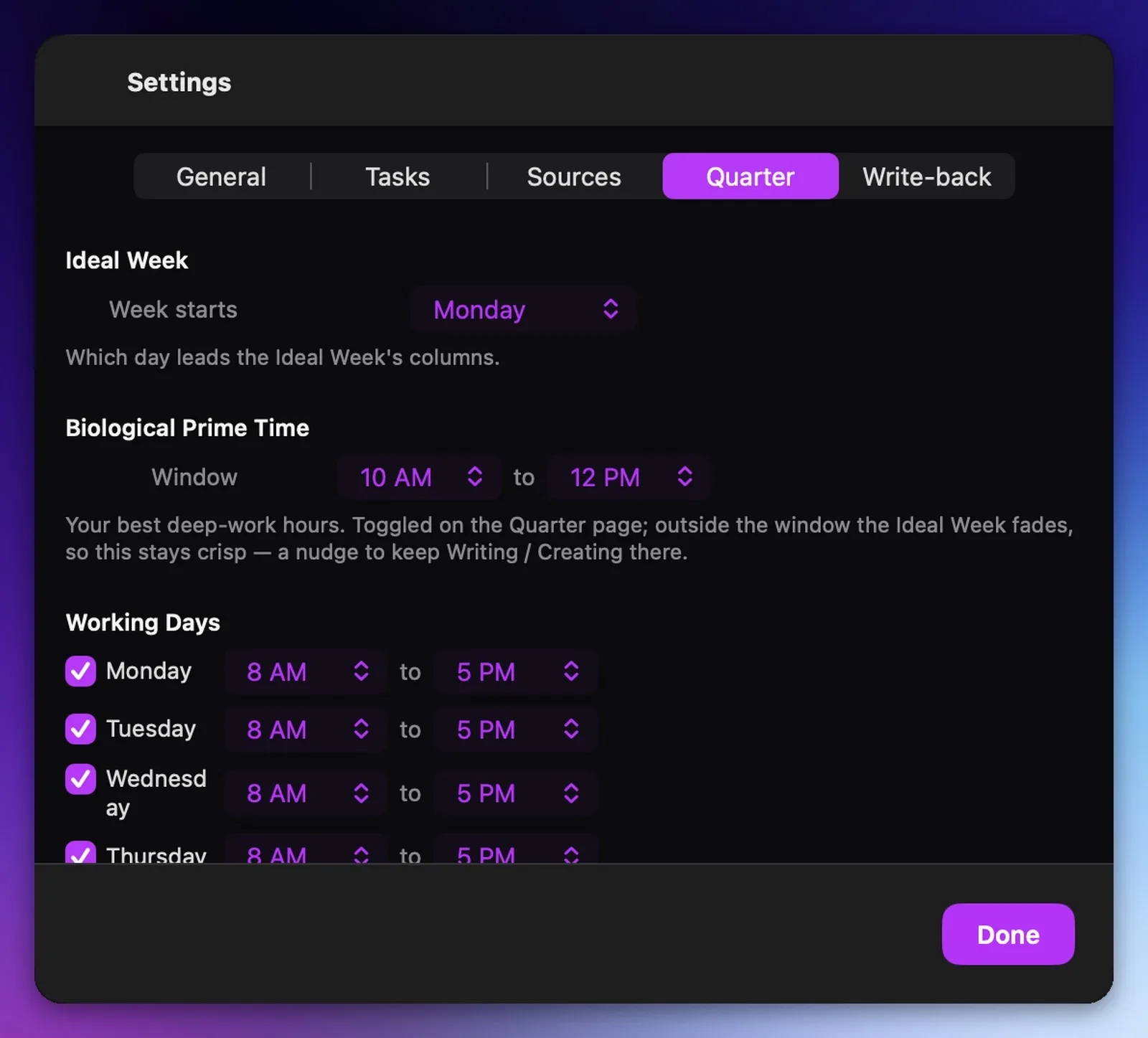
- Week starts on.
- Biological Prime Time window and Working Days with hours — shading on the Ideal Week.
- Paths: Retreats folder, Template, Ideal week, LifeTheme, Core values. Empty fields show what was detected in gray: My Ideal Week, My LifeTheme and My Core Values are found at the top of the vault or one folder down (LifeHQ keeps them in PKM Stack).
Write-back
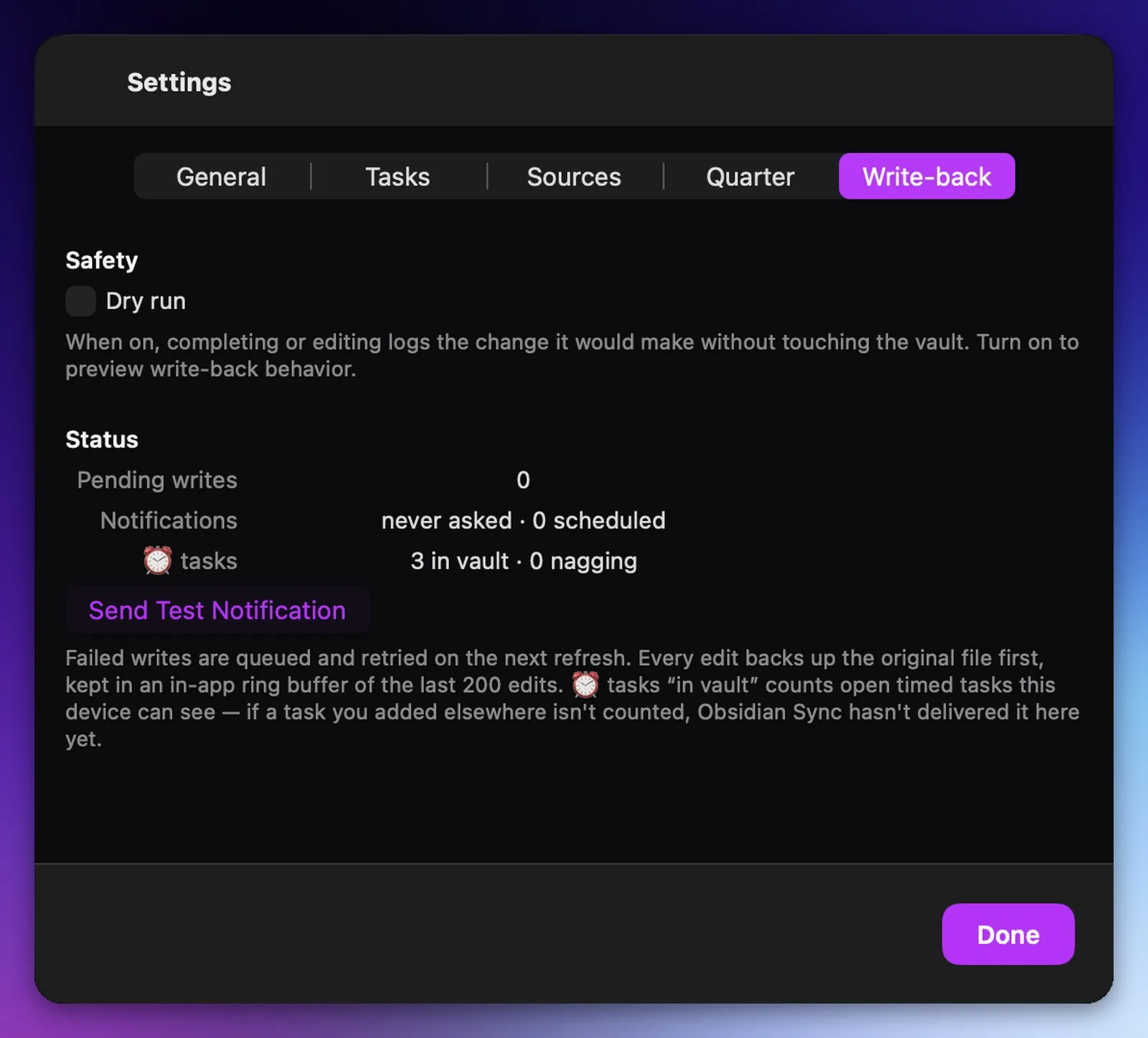
- Dry run — the app reads normally but doesn't write anything.
- Status — pending writes, notification permission and count, tasks with alarms (and how many are nagging), the next alert, and Send Test Notification.
Every edit backs up the original file first, and failed writes are retried. See Safety, Sync and Troubleshooting.