
Chapter 13
Keyboard Shortcuts
Mac unless noted. Most also work on an iPad with a keyboard.
Forgot a key? Hold ⌘
Hold ⌘ by itself for a second and a card lists the shortcuts for whatever you're looking at — the main window, Triage, Review or a new task. Let go to close it. While ⌘ is down, the sidebar's top rows also show their shortcuts.
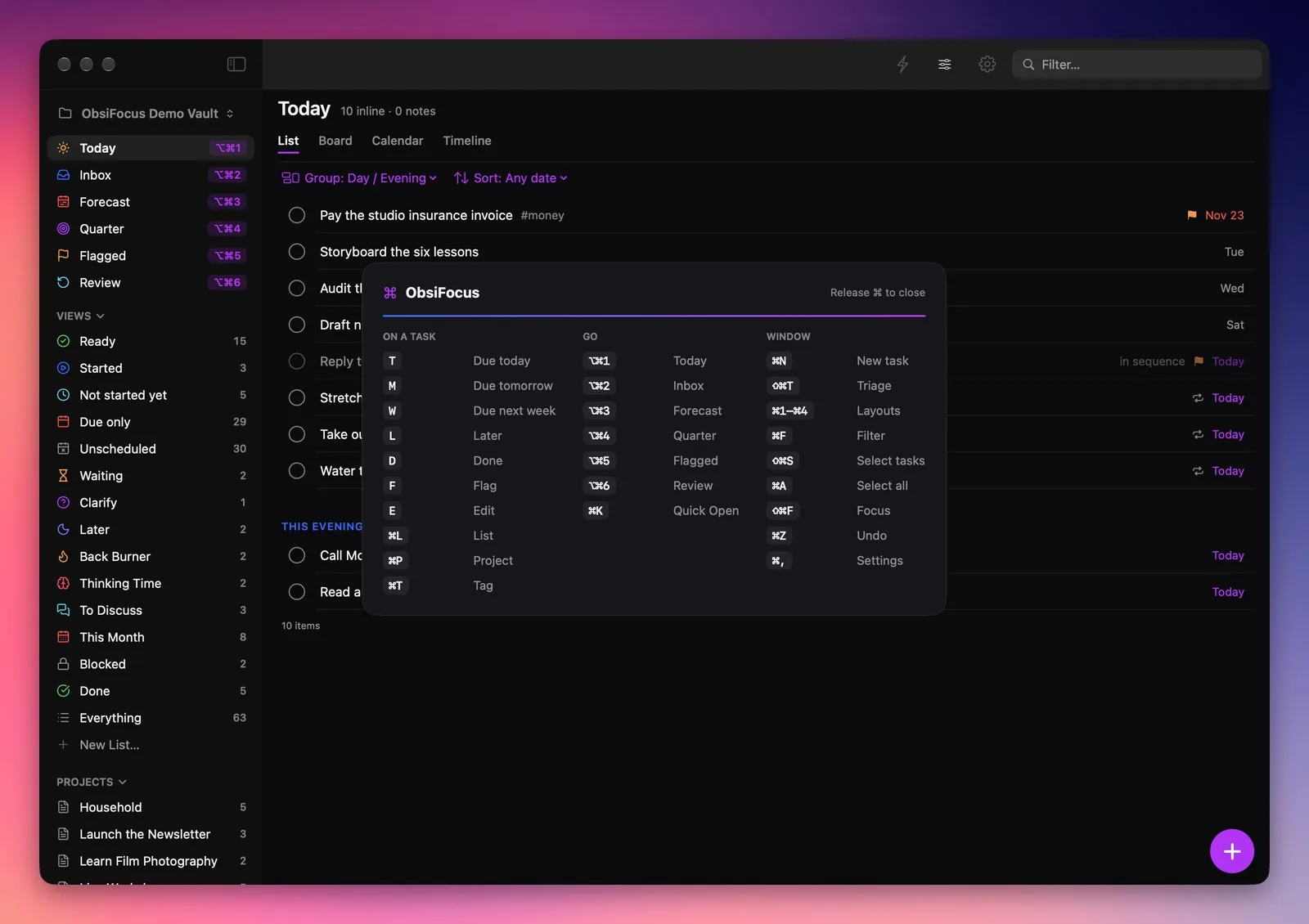
The two rules
- A bare letter does something to the task: T today, M tomorrow, W next week, L later, D done, X drop, F flag, H hold, S skip, E edit.
- ⌘ + letter opens a picker: ⌘L list, ⌘P project, ⌘T tag.
The same keys mean the same thing in lists, Triage, Review and Capture.
Anywhere
| Keys | Does |
|---|---|
| ⌘N | New task (capture window) |
| ⌥Space | Capture from any app — Quick Capture's, or ObsiFocus's own when Quick Capture isn't running |
| ⌘, | Settings |
| ⇧⌘T | Triage |
| ⇧⌘R | Review |
Go
The sidebar's top rows, in order (also the Go menu on the Mac):
| Keys | Goes to |
|---|---|
| ⌥⌘1 | Today |
| ⌥⌘2 | Inbox |
| ⌥⌘3 | Forecast |
| ⌥⌘4 | Quarter |
| ⌥⌘5 | Flagged |
| ⌥⌘6 | Review |
Main window
| Keys | Does |
|---|---|
| ⌘1 – ⌘4 | List, Board, Calendar, Timeline (⌘1–⌘3 on iPhone) |
| ⌘K | Quick Open — jump to any view, list, project or person |
| ⌃⌥⌘C | Copy a link to the view on screen |
| ⌘F | Filter the current view (Esc clears it) |
| ⌃⌘S | Show / hide the sidebar |
| ⇧⌘F | Focus on the project you're viewing / turn Focus off |
| ⌘Z | Undo the last completion or delete (while its notice is showing) |
| ⇧⌘S | Select tasks (batch edit) on / off — any layout |
| ⌘A | Select every task in the view |
| ⌘-click / ⇧-click | Select one more task / a range |
| Esc | Stop selecting |
Lists
In any layout, when you're not typing in a field. The keys act on the highlighted task (List) or the selected card (Board, Calendar, Timeline).
| Key | Does |
|---|---|
| ↑ / ↓ | Move the highlight (List) or the selection |
| D | Done |
| F | Flag / unflag |
| T | Due today |
| M | Due tomorrow |
| W | Due in a week |
| L | Later (files to #later, clears the due date) |
| E or Return | Edit |
| ⌃⌘C | Copy a link to the task |
| Space | Complete the selected task |
| ⌘L / ⌘P / ⌘T | File it in a list / project / tag |
| Esc | Clear the highlight |
Triage
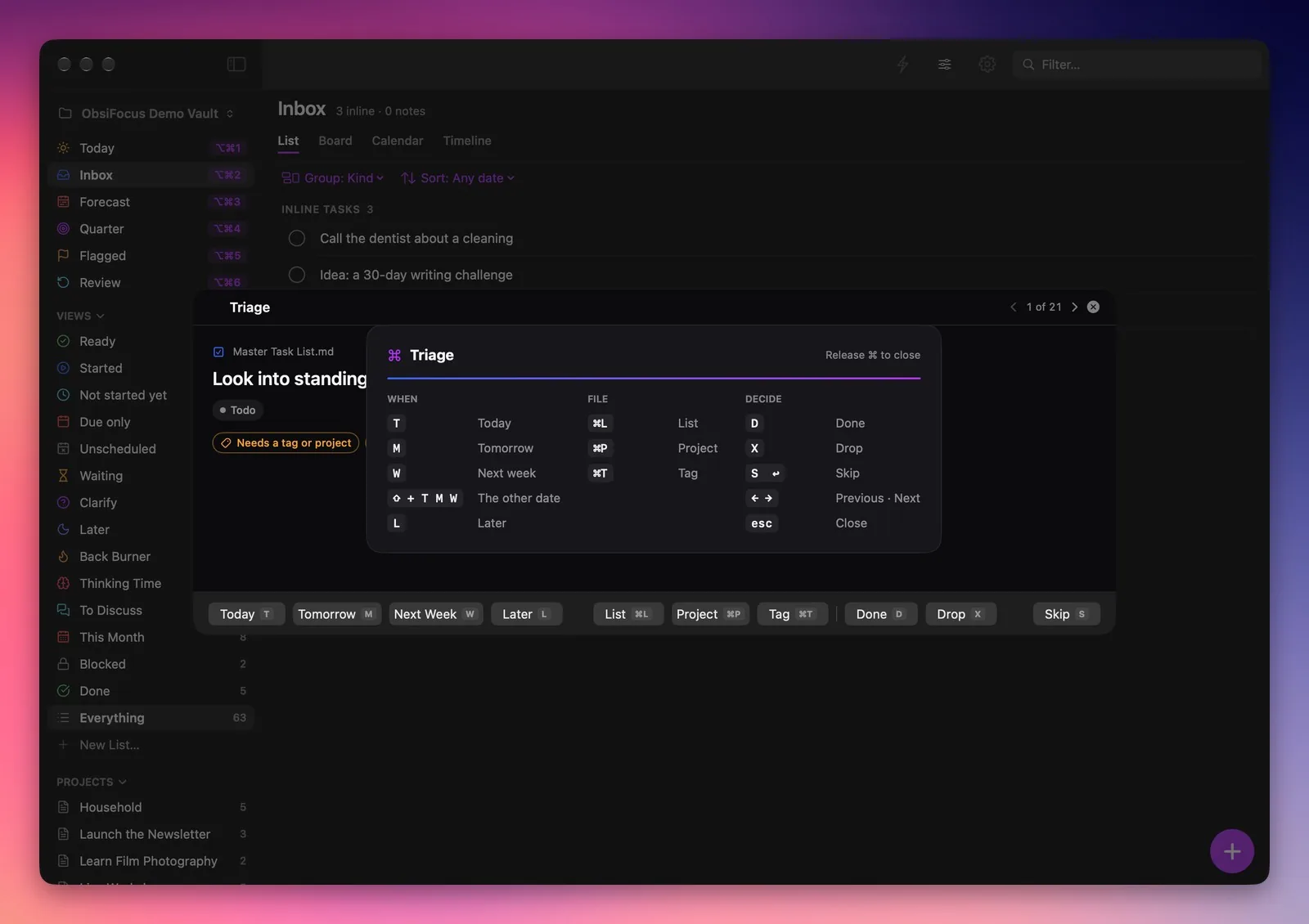
| Key | Does |
|---|---|
| T / M / W | Today / Tomorrow / Next Week |
| ⇧T / ⇧M / ⇧W | The same days, on the other date (start vs. due) |
| L | Later |
| ⌘L / ⌘P / ⌘T | List / Project / Tag picker |
| D | Done |
| X | Drop |
| S or Return | Skip |
| ← / → | Previous / next card |
| Esc | Close Triage |
Review
| Key | Does |
|---|---|
| Return or ⇧⌘R | Mark Reviewed |
| S or ⌥Return | Skip |
| H | Hold |
| D | Done (the project) |
| X | Drop the project |
Capture window
| Keys | Does |
|---|---|
| ⌘Return | Add |
| Esc | Cancel |
| ⌘S / ⌘D | Start / Due date |
| ⌘R | Alarm |
| ⌘L / ⌘P / ⌘T | List / Project / Tag picker |
Pickers
The filter panel used for lists, projects, tags and Waiting on:
| Keys | Does |
|---|---|
| Type | Narrow the list |
| ⌘1 – ⌘9 | Pick rows 1–9 |
| ⌥1 – ⌥9 | Pick rows 10–18 |
| ↑ / ↓, Return | Move and pick |
| Esc | Close the panel |
Date picker
In any calendar popover on the Mac, type a date in the field at the top — fri, nov 30, in 3 days, next week, eom — and press Return. The full list is in Capturing Tasks › Typing dates and times.