Chapter 1
Getting Started
Connecting your vault
On the Mac, ObsiFocus picks a vault for you on first launch: the one currently open in Obsidian, or the one you used most recently. To change it, open Settings → General → Vault (the list comes from Obsidian's own vault registry), or use the vault switcher at the top of the sidebar.
On iPhone, tap Choose Vault Folder. In the Files picker, open On My iPhone → Obsidian and pick your vault's folder. Obsidian Sync keeps that folder current; ObsiFocus reads whatever is there.
Without Obsidian
You don't need Obsidian. On the first-launch screen, choose I don't use Obsidian — start fresh:
- On the Mac, ObsiFocus makes an ObsiFocus folder in iCloud Drive with a starter task, and opens it.
- On iPhone, the Files picker opens: choose that same ObsiFocus folder in iCloud Drive (or tap New Folder to make one).
In a folder like this, every task is its own note in a Tasks folder: the task's status, dates, alarm and tags sit at the top as properties, and you can write notes, links or a checklist underneath. It's all plain Markdown you can open in any text editor.
(When you connect an Obsidian vault instead, tasks are lines in the Tasks plugin's format, as described in How ObsiFocus Works — one note per task is only for folders started fresh.)
A few things change when the folder isn't an Obsidian vault:
- Open in Obsidian, Copy Obsidian Link and Revise in Obsidian are hidden.
- On iPhone, tapping Vault as of … re-reads the folder instead of opening Obsidian.
- iCloud Drive keeps the two devices in step instead of Obsidian Sync.
If you start using Obsidian later, just open the same folder as a vault in Obsidian; ObsiFocus notices and the Obsidian buttons come back.
Trying the demo vault
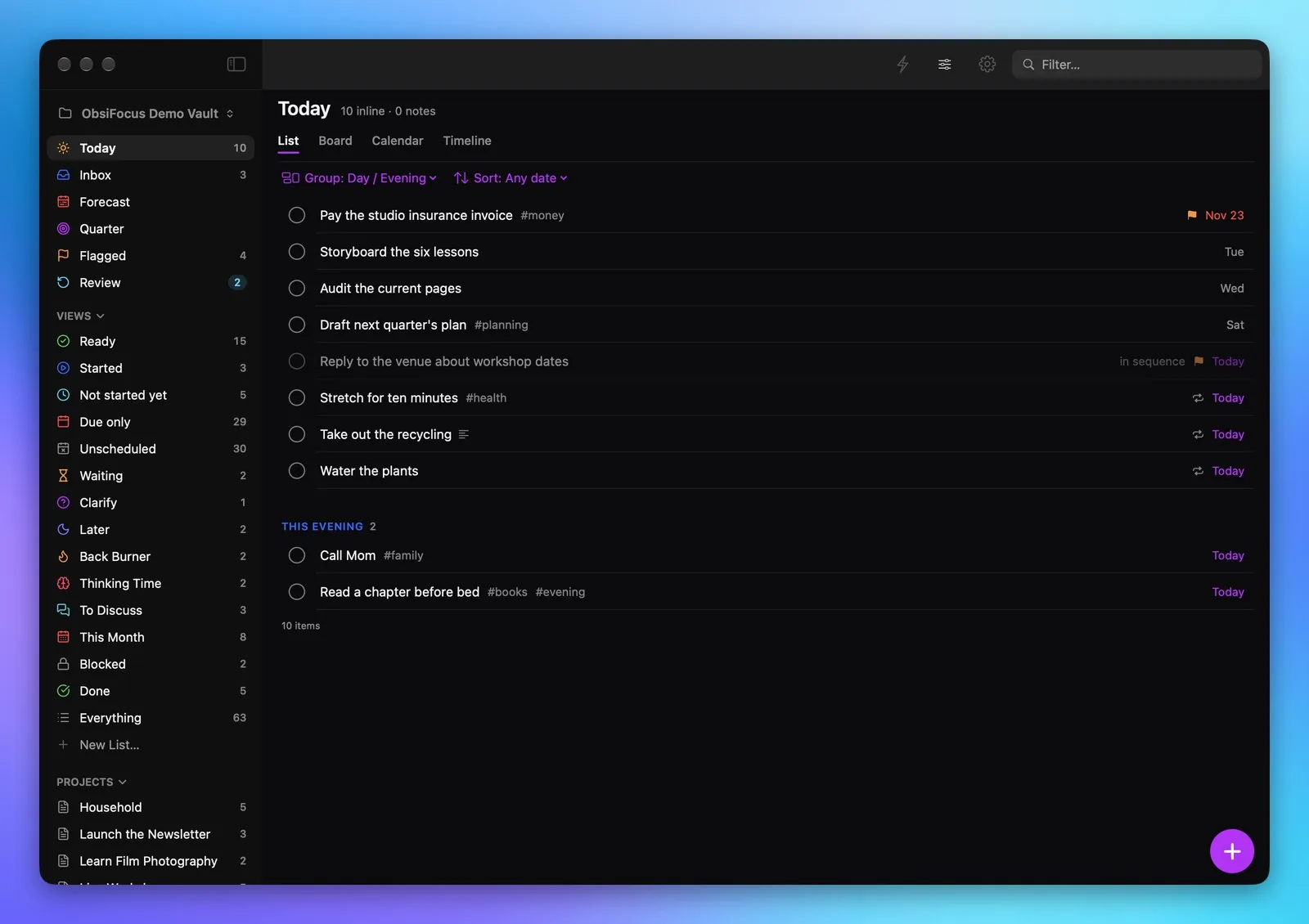
Don't want to point it at your real notes yet? Choose Try the Demo Vault on the welcome screen, or Settings → General → Open the Demo Vault. It creates ObsiFocus Demo Vault (in ~/Documents on the Mac, in the app's Documents folder on iPhone): a full working setup with something in every view — overdue and due-today tasks, alarms, repeats, subtasks, notes on tasks, task notes, six projects (one sequential, two due for review), two people, a quarter dashboard and an ideal week. Every screenshot in this manual comes from it.
It keeps itself current. Each day you open it, every date in it moves along with today, so something is always due today and the week ahead is always full. Your edits in it stay; only the dates move. Your own vault is untouched — switch back from the vault picker.
What ObsiFocus reads
| What it is | Where it comes from | |
|---|---|---|
| Inline tasks | Checklist lines with your global filter tag | Anywhere in the vault |
| Task notes | Notes with a status and dates in frontmatter | The folders listed in Sources |
| Projects | Notes with a project tag | Every inline task with that tag belongs to it |
| People | Notes in People/ with a person tag |
Tasks with that tag show on their page |
| The quarter | Your retreat note, ideal week, LifeTheme, core values | Paths in Settings → Quarter |
The global filter (usually #todo) is detected from your Tasks plugin settings; you can override it in Settings → Tasks. Folders you exclude there (and, optionally, Kanban boards) are skipped.
For the exact Markdown of each, see How ObsiFocus Works.
Using it with LifeHQ
ObsiFocus reads the same conventions as LifeHQ, the ready-made Obsidian vault from Practical PKM, so a LifeHQ vault works the moment you connect it. Nothing to set up and nothing to move:
| In LifeHQ | In ObsiFocus |
|---|---|
#todo tasks anywhere, and the Master Task List in Task Management |
Every task; new tasks you capture go to that same Master Task List |
Projects notes (tagged #project, with project-status and due-date) |
The Projects section of the sidebar. A project's own tag (the second tag in the template) pulls in its tasks from anywhere, and backlog / active / inactive / done map to To Do / In Progress / On Hold / Done. New Project… builds the note from LifeHQ's Project Template, queries included |
| The Reviewed stamp on a project | Review reads it and updates it, so the button in Obsidian and the app agree |
| Writing notes with status and publish-date | Task notes: idea is On Hold, backlog To Do, inprogress In Progress, done Done, with the publish date as the due date |
People notes and #discuss / #waiting tags |
The People section and each person's page |
| Personal Retreats (2026 Q1.md and so on), plus My Ideal Week, My LifeTheme and My Core Values in PKM Stack | The Quarter page. A new quarter's note is created from LifeHQ's Personal Retreat Template, or sent straight from the Retreat Planner |
Two things stay in Obsidian:
- The Writing Projects Kanban board is skipped, so its cards don't show up twice. Changing a piece's status in ObsiFocus writes the same word the board's columns use, but the card only moves when you drag it on the board.
- The Meta Bind buttons, Bases and dashboards are Obsidian's. ObsiFocus edits the same properties they read, so they stay current.
Don't have a system yet?
Everything ObsiFocus reads comes set up in LifeHQ: the Master Task List, the project and writing workflows, People notes and the quarterly Personal Retreat, with a how-to for each. ObsiFocus works fine without it, but it's the quickest way to start with all of it in place.
Checking it worked
The first time ObsiFocus reads a vault, a note at the bottom tells you what it found — for example Found 1,104 tasks in 87 notes. If it finds nothing, it says why (usually your tasks use a different tag than the global filter, or the vault is still syncing) and offers Open Settings. A fresh folder started without Obsidian just says You're set up.
The welcome screen
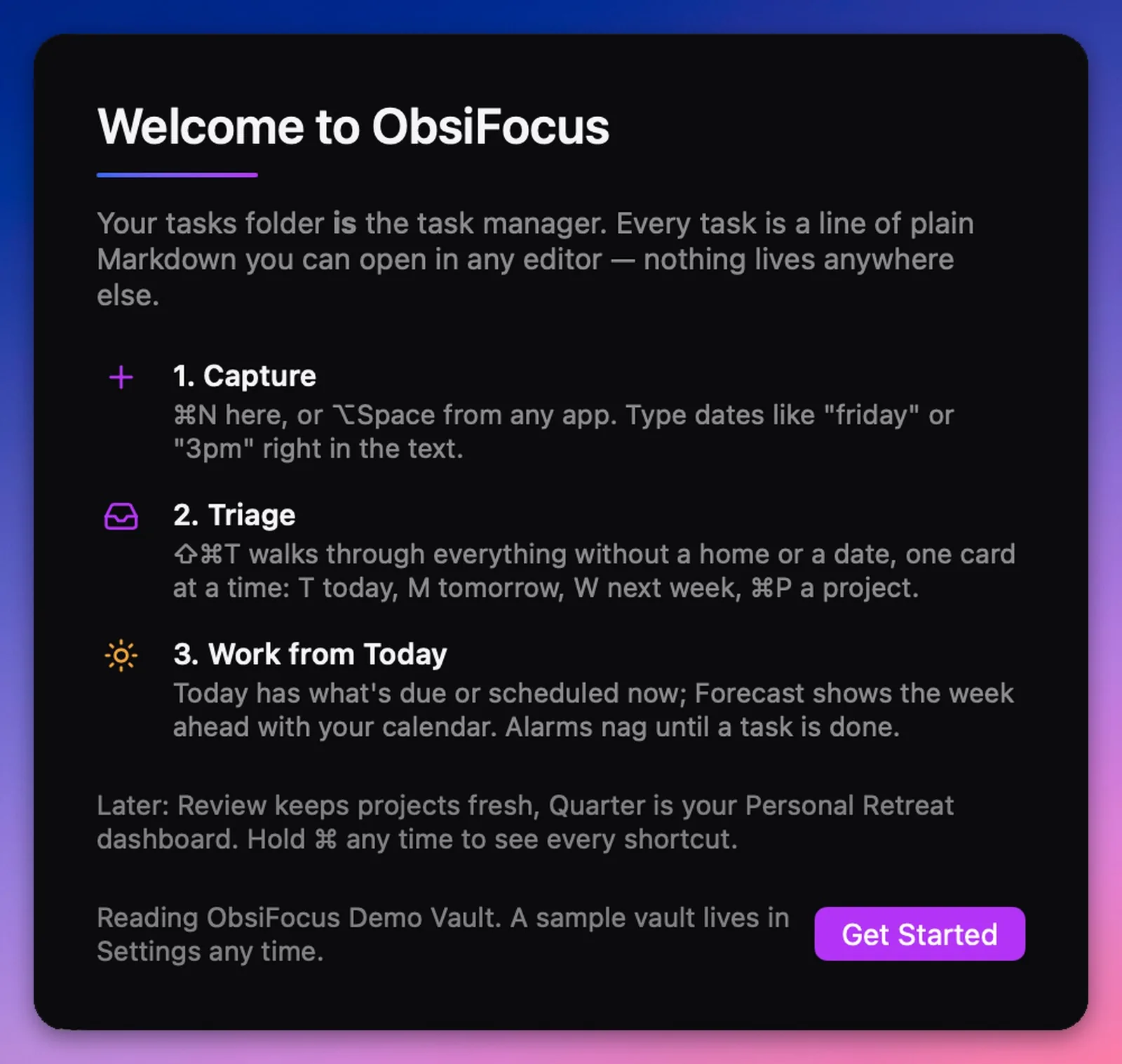
The first launch shows the daily loop: capture a task, triage it into a home and a date, then work from Today. It appears once. The first time you open Triage, a tip explains its keys.
The manual is under Help → ObsiFocus Manual on the Mac, and in Settings → General on both devices.