
Chapter 5
Capturing Tasks
The capture window
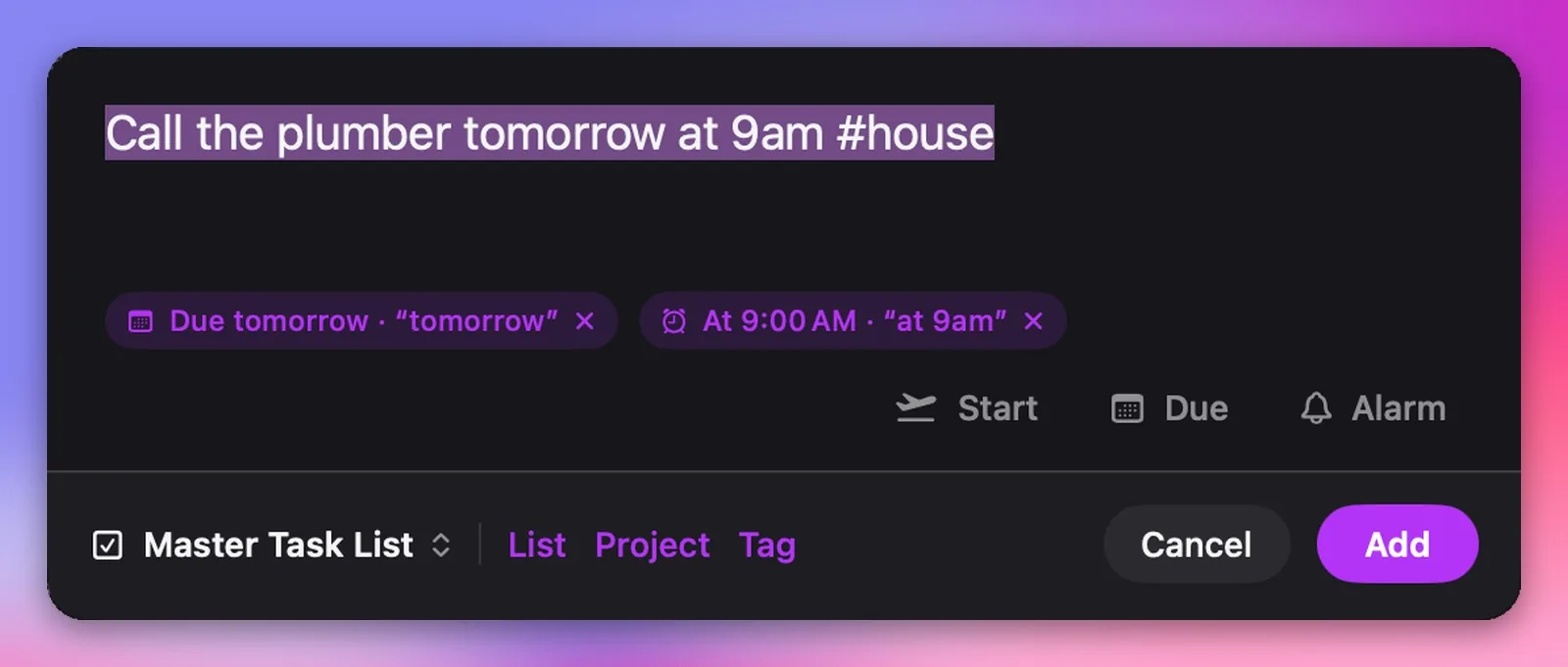
Open it with ⌘N (Mac), the floating + button, or ⌥Space from anywhere on the Mac (when Quick Capture isn't running — see below).
Type what needs doing, then optionally:
- Start (⌘S) and Due (⌘D) — pick dates from the calendar.
- Alarm (⌘R) — a day and time (saved as the task's Scheduled date +
⏰), or a place. Same as the editor's alarm; see Editing Tasks › Alarm. - List, Project, Tag (⌘L, ⌘P, ⌘T) — open the filter panel to file the task. Picked tags show as pills you can remove. Typing a new tag offers Create #tag; typing a new project name offers New project "…", which creates the project note too.
Add (⌘Return) saves; Cancel (Esc) discards.
Typing dates and times
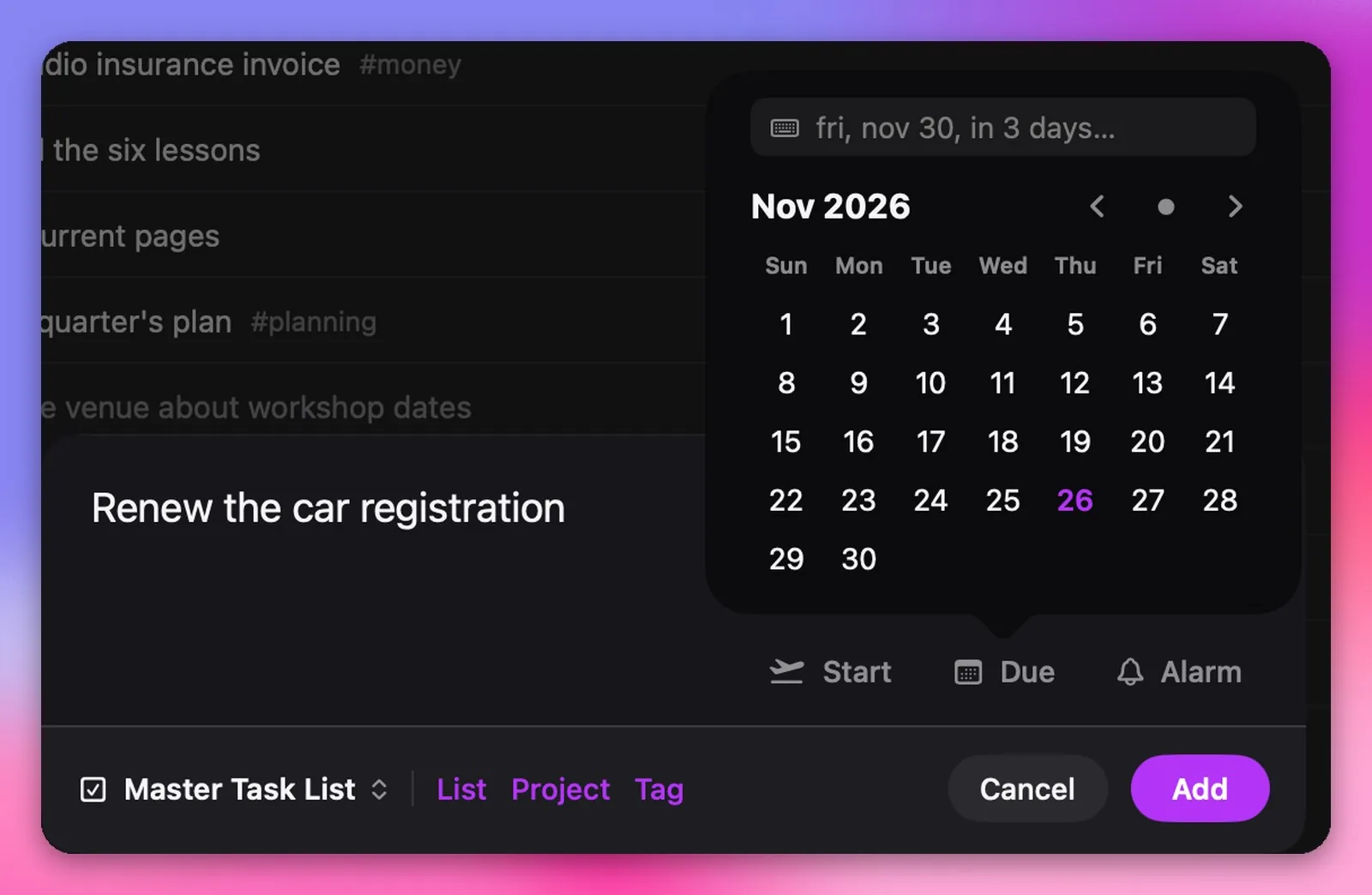
Write dates and times right in the text — ObsiFocus spots them, shows a chip (for example Due Fri · "friday"), and removes the phrase from the title when you save. Dismiss a chip with its ×.
| You type | You get |
|---|---|
today, tomorrow (tmrw, tmr), day after tomorrow |
That day |
friday, fri (abbreviations only at the end), this friday |
The next Friday — never today |
next friday |
A week after that |
next week · next month · next year |
+7 days · the 1st of next month · January 1 |
in 3 days, in two weeks, in a month |
That far ahead |
nov 30, 30 nov, november 30th, 11/30, 2026-11-30 |
That date (next year if it's already passed) |
end of month, eom |
The last day of this month |
3pm, 2:30pm, 14:30, at 9, noon, midnight |
A time — becomes the alarm |
A leading "on", "by", "due" or "for" is fine. If you type more than one date, the last one wins. A plain hour needs "at": at 3 means 3 PM (1–6 are read as afternoon).
A date becomes the due date (unless you picked one with the Due button). A time becomes an alarm: if you didn't give a day too, it's scheduled for today — or tomorrow if that time has already passed.
Where tasks go
In a folder started without Obsidian, each captured task becomes its own note instead — see Getting Started › Without Obsidian.
The destination menu (bottom left) starts on your capture note, usually Master Task List. Which note, which tag, whether new tasks go at the top, and whether they get an 🆔 are set in Settings → Tasks → New Tasks. Those settings are saved in your vault, so the Mac, the iPhone and Quick Capture all capture the same way.
The same menu lets you create task notes instead: one entry per note source (for example New project note, or New note in Articles). A note destination swaps Start for a Status menu and adds a Project tag field.
When you open the capture window from a list, that list's tag is suggested as a chip — click it to leave it off.
Quick Capture (Mac)
Quick Capture is the separate menu-bar app on ⌥Space. When ObsiFocus has been used with your vault, Quick Capture gains the same List, Project, Tag and Alarm buttons in task mode:
- List / Project / Tag insert the
#taginto the text. - Alarm offers half-hour times from now through tomorrow and inserts
⏳ day ⏰ time— the same alarm ObsiFocus nags on.
ObsiFocus keeps a small file in your vault's .obsidian folder that tells Quick Capture your projects, lists and most-used tags. If that file isn't there, Quick Capture simply hides those buttons.
While Quick Capture is running it owns ⌥Space; quit it and ObsiFocus takes ⌥Space back.
One set of capture settings
Quick Capture uses the same New Tasks settings as ObsiFocus. Change them in either app's Settings and both follow.
Siri, Shortcuts and Share (iPhone)
- "Add a task to ObsiFocus" or "Capture a task in ObsiFocus" — Siri asks what the task is. It lands in your vault the next time ObsiFocus opens.
- The Share sheet can send text to ObsiFocus the same way.
Dates and times in what you say are read the same way as in the capture window ("call Sam friday at 3").
Importing from Apple Reminders
Turn on Settings → General → Siri Capture → Import from Apple Reminders and name a Reminders list (default ObsiFocus). Anything added to that list — by Siri, the Watch, CarPlay, anyone sharing the list — is moved into your vault: the reminder's date becomes the due date and its time becomes the alarm. Dates typed into the reminder's title are understood too. The reminder is then marked complete in Reminders. It runs whenever ObsiFocus opens (on Mac or iPhone, whichever is first).
Links
vaulttasks://capture?text=…opens the capture window prefilled.vaulttasks://open?id=…opens a task's editor (what notifications use).